AI pet portraits
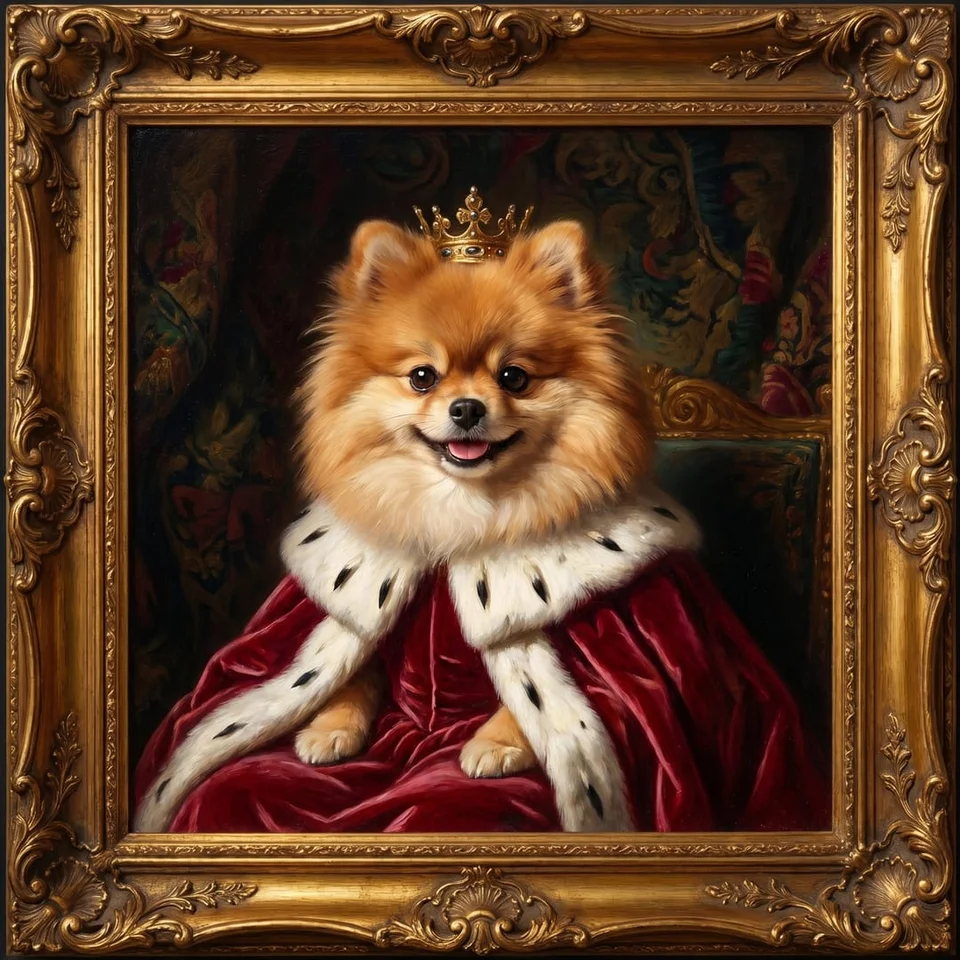
Turn your pet into royalty with a velvet cape, a small crown and rich portrait lighting. Start with a favorite photo of your dog or cat.
Try it on your photo
How to create a royal pet portrait
Choose a photo with a clear face
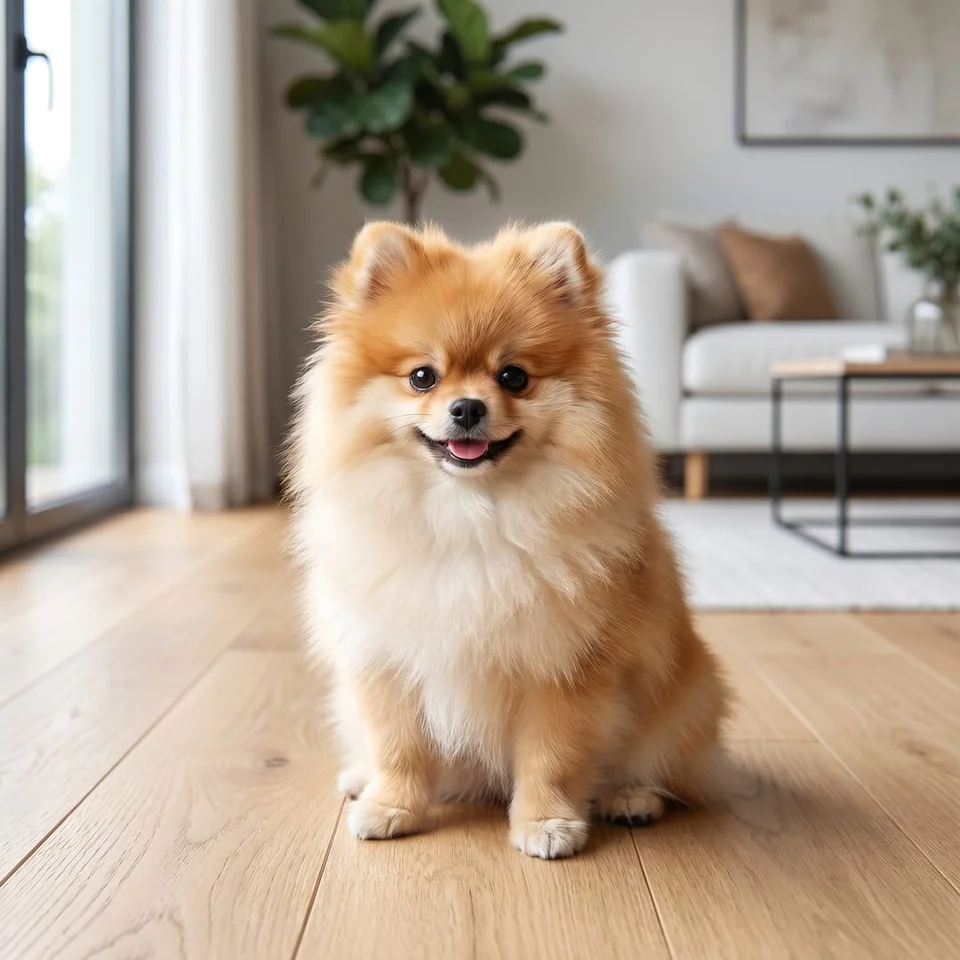
Use a picture where the eyes, ears and muzzle are visible. A photo taken near your pet's eye level is a useful starting point. Include the head and some of the body so the crown and cape have space in the finished composition.
Keep the markings you love
The royal-pet preset adds a velvet cape, small crown and portrait lighting. Use the extra instructions to mention a white chest patch, different-colored eyes or a distinctive ear. Describe the details that help you recognize your own animal.
Give my pet a velvet royal cape and a small crown. Keep the face, ear shape, eye color and coat markings recognizable.
Compare and keep the portrait
When the result is ready, switch to the original to check the face, ear shape and coat pattern. Download the portrait or share it from your phone. If you try another version, start from the original pet photo to keep the reference consistent.
BeforeAfter
Make a royal portrait of the pet you know
A regal costume is funny because the face underneath it is familiar. This tool starts with your pet's photograph and requests a royal portrait with a velvet cape, a small crown and rich lighting. The point is to keep the animal recognizable while changing the presentation.
Give the group chat a new ruler
Choose a photo your family or friends already recognize and let the costume make the joke. A clear face is easier to appreciate on a phone than a scene filled with props. Add your own message when sharing instead of putting a long caption inside the portrait.
Make a keepsake from a favorite photo
Use a recent portrait or an older favorite with clear facial details. Compare the eye color, muzzle and coat markings before saving. A generated portrait is a new interpretation, so choose the version that best captures the features you associate with your pet.
Explore a painted royal style
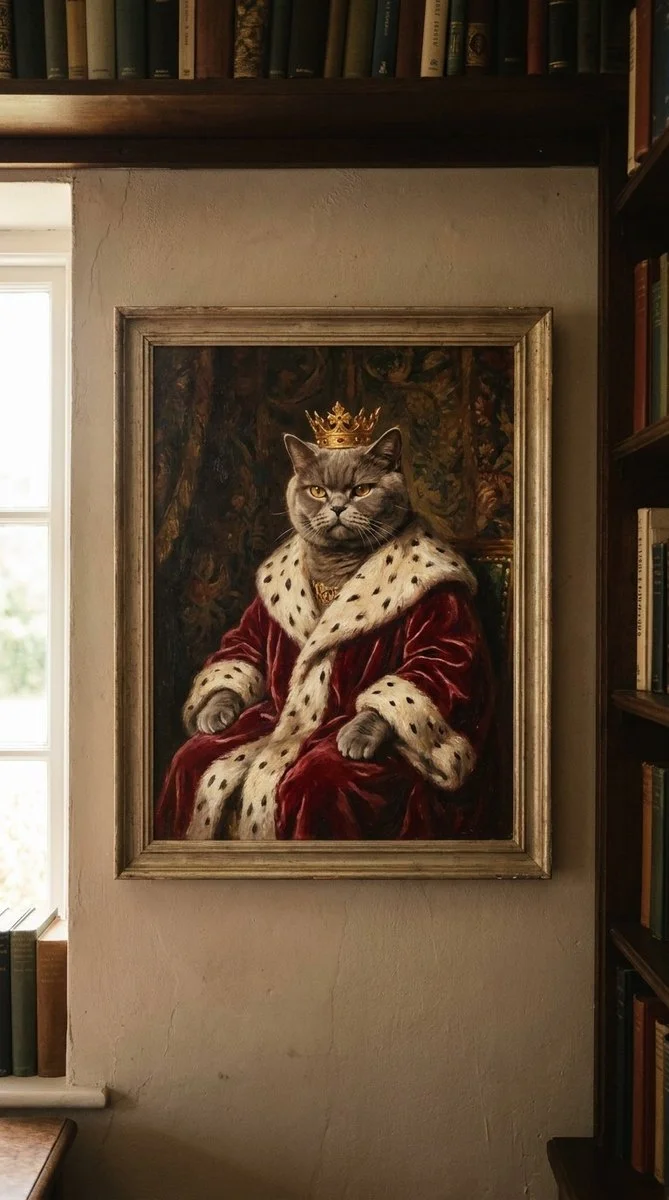
The app also includes a separate royal oil-portrait template with a burgundy coat and canvas texture. This page starts with the cape-and-crown Royal Pet effect. If you prefer a painted finish, open the matching template in the app rather than assuming every art style is selected here.
Keep your pet recognizable beneath the crown
Photograph near eye level
Get low enough to see the face without looking down steeply from above. Keep both ears in view if they are part of your pet's distinctive shape. A relaxed pose with the eyes visible gives the portrait a more useful reference.
Keep fur detail in focus
Soft daylight can show the difference between dark fur, lighter markings and the background. Avoid motion blur around the eyes and muzzle. If a collar tag contains information you do not want in the result, choose another photo or crop it out first.
Use one pet as the subject
Start with a photo of a single animal so there is no ambiguity about whose face and markings to preserve. A group photo can mix references or change the composition. Make separate portraits if you want to compare the royal look on different pets.
Keep the details you like.
Give my pet a velvet royal cape and a small crown. Keep the face, ear shape, eye color and coat markings recognizable.
Questions about AI pet portraits
Need something else? Contact us.
Upload a clear pet photo and add any details you want to retain. The Royal Pet preset requests the same animal in a velvet cape and small crown with rich portrait lighting. Generate the result, compare it with the original and save or share it.
Yes. The preset asks to preserve the animal's species, face and markings. Choose a clear portrait with visible eyes and ears. If your pet has a distinctive feature, mention it in the instructions and compare it with the original afterwards.
This page starts with the Royal Pet cape-and-crown preset. It does not have a gallery of selectable painting styles. The app has separate royal oil-portrait and cartoon templates for those effects. Written instructions can describe a direction, but an exact style is not guaranteed.
The preset asks to preserve the face, species and markings. Mention a distinctive patch, eye color or ear shape when it matters. Compare the completed portrait carefully because a generated image can still reinterpret small details.
No. You receive a digital image that you can download or share. If you want to print it yourself, check the downloaded file dimensions against your printer or print service requirements before choosing a large format.
Yes. Open the page in your mobile browser and tap Add Your Photo. Your device provides a picker for your photo library, files or camera, depending on the browser. You can download the finished photo or use the share button in the editor.
Choosing a photo and writing instructions is free. Generating the edited image requires a paid plan. Eligible new customers can start with 40 images for $0.99 for three days. The weekly plan then renews at $6.99 per week, or the yearly plan at $59.99 per year with 100 images per month.
The page saves your selected photo and instructions in this browser before sending you to sign-in or the paywall. Continue in the same browser to keep your draft. Checkout returns you to the matching editor. Paying does not start a generation automatically; you press Generate Image when you are ready.