Hair color changer
Preview another hair color on your own photo. Choose a shade and keep your current haircut so you can focus on the color change.
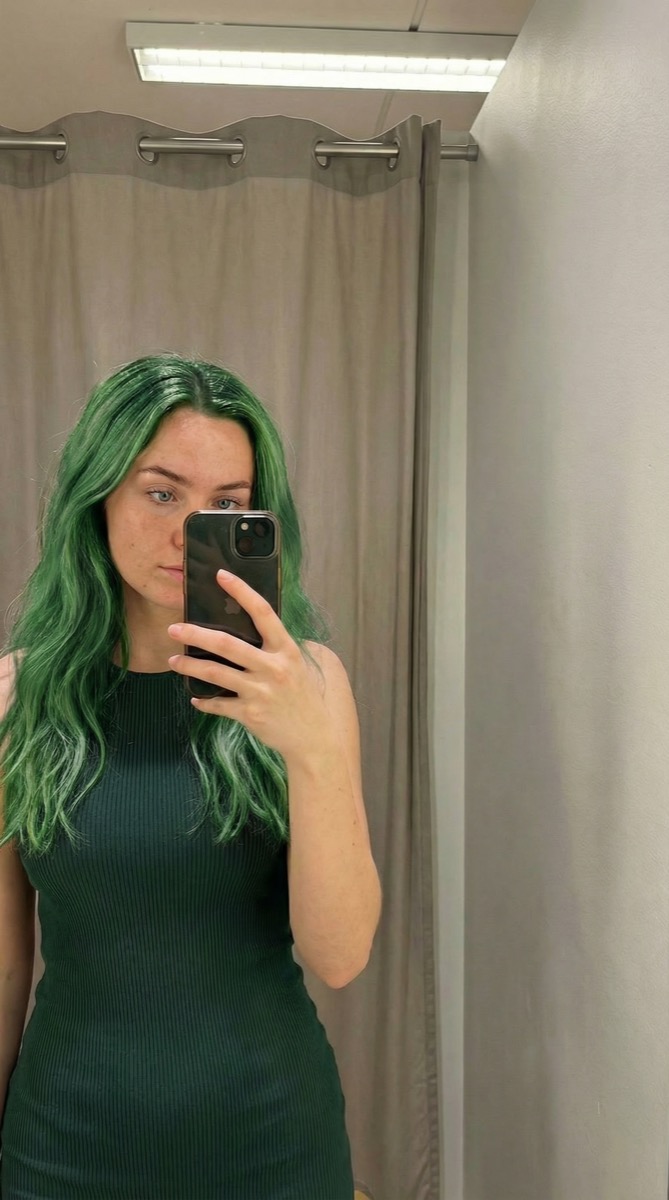
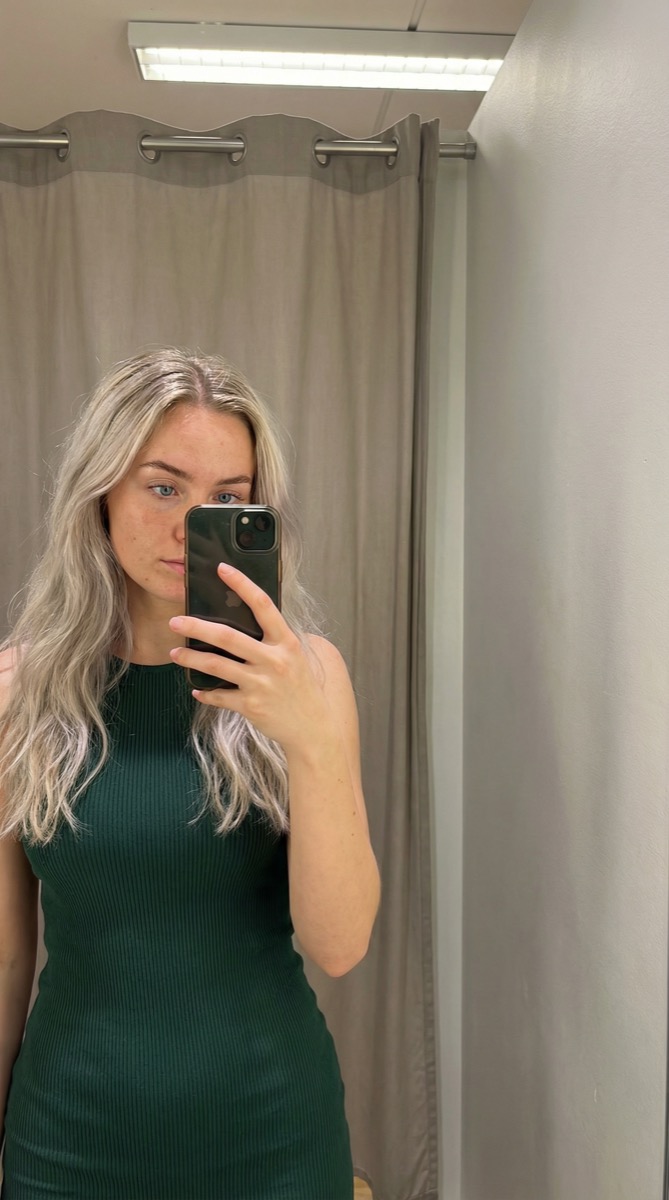
Try it on your photo
How to try a new hair color on your photo
Choose a portrait that shows your hair
Use a clear photo with the top, sides and length of your hair visible. Soft light helps distinguish the strands from the background. If you want to compare the color around your face, keep the forehead and cheeks free of hands or other objects.
Pick a shade and keep the haircut
Choose emerald green, chocolate brown, black, golden blonde, copper red or rose pink. Keep the first edit focused on color rather than changing the length and style at the same time. Add any details you want unchanged in the extra instructions.
Use the selected color on my hair only. Keep my haircut, face, eyebrows, skin tone, clothes and background unchanged.
Compare around the face and ends
Switch between the generated photo and your original. Look at the roots, the strands beside your face and the ends. Save the version you like, then return to the original for another color so an earlier edit does not become the reference for the next.
BeforeAfter
Compare a new shade with the hair you already have
Color charts show a shade on someone else or on a small sample. Your own portrait puts the idea beside your face, eyebrows and clothing. This tool uses the uploaded photograph as the starting point and asks to retain the existing haircut while changing the hair color.
Try a familiar color before a bold one
Compare a brown or blonde direction with a more playful green or pink option using the same portrait. Pay attention to the sections nearest your face. A consistent angle and expression make the difference between colors easier to judge.
Keep the length and texture as references
Ask to retain curls, waves, a fringe or a particular length if those are important. Separating the color question from a haircut change helps you see which part of a new look appeals to you. Inspect the texture as well as the overall shade.
Take a visual idea to your colorist
Save an interpretation you like and bring the original photo too. You can use the pair to discuss the general shade and placement. Your colorist can explain what is practical for your actual hair, its current color and any previous treatments.
Give the hair color a clear reference
Use light that shows the strands
Avoid a photo where the hair becomes a dark silhouette against a bright window. Choose even light that reveals the roots and different sections. Check focus before uploading, especially if your hair blends into a dark top or background.
Show the parts you want recolored
Include the full visible length if you want to compare color at the ends. A hat or a cropped top of the head hides part of the area the edit needs. If only one section should change, describe that section clearly in your instructions.
Compare one change at a time
Use the same source for each shade and keep the hairstyle, expression and background consistent. A new cut and a new color together can make it harder to tell what you prefer. Start with a simple overall-color preview before describing a more detailed look.
Keep the details you like.
Use the selected color on my hair only. Keep my haircut, face, eyebrows, skin tone, clothes and background unchanged.
Questions about hair color previews
Need something else? Contact us.
Add a portrait, choose a color and generate a preview. The preset asks to recolor the hair while keeping your existing haircut and recognizable features. Compare the result with the original using the editor toggle, then save or share the version you prefer.
The selector offers emerald green, chocolate brown, black, golden blonde, copper red and rose pink. Extra instructions can describe the tone or features to retain. The generated shade is a visual interpretation, not a match to a professional dye code.
The preset asks to retain the haircut, face, skin tone and background. Mention curls, a fringe or another important detail if needed. Check those areas after generation because an AI edit can still reinterpret small features.
You can describe a section in the extra instructions, such as keeping the roots and coloring only the ends. There is no separate highlighting brush or section mask. Clear instructions and a photo showing the relevant hair give the edit a better reference.
No. It changes a photograph to show an appearance. It does not evaluate your hair condition or predict how dye and bleaching will behave. Use the image as a visual starting point when discussing a real color change with a professional.
Yes. Open the page in your mobile browser and tap Add Your Photo. Your device provides a picker for your photo library, files or camera, depending on the browser. You can download the finished photo or use the share button in the editor.
Choosing a photo and writing instructions is free. Generating the edited image requires a paid plan. Eligible new customers can start with 40 images for $0.99 for three days. The weekly plan then renews at $6.99 per week, or the yearly plan at $59.99 per year with 100 images per month.
The page saves your selected photo and instructions in this browser before sending you to sign-in or the paywall. Continue in the same browser to keep your draft. Checkout returns you to the matching editor. Paying does not start a generation automatically; you press Generate Image when you are ready.