Wall color visualizer
See a different wall color in the room you already know. Choose a shade and compare it with your furniture, floor and natural light.
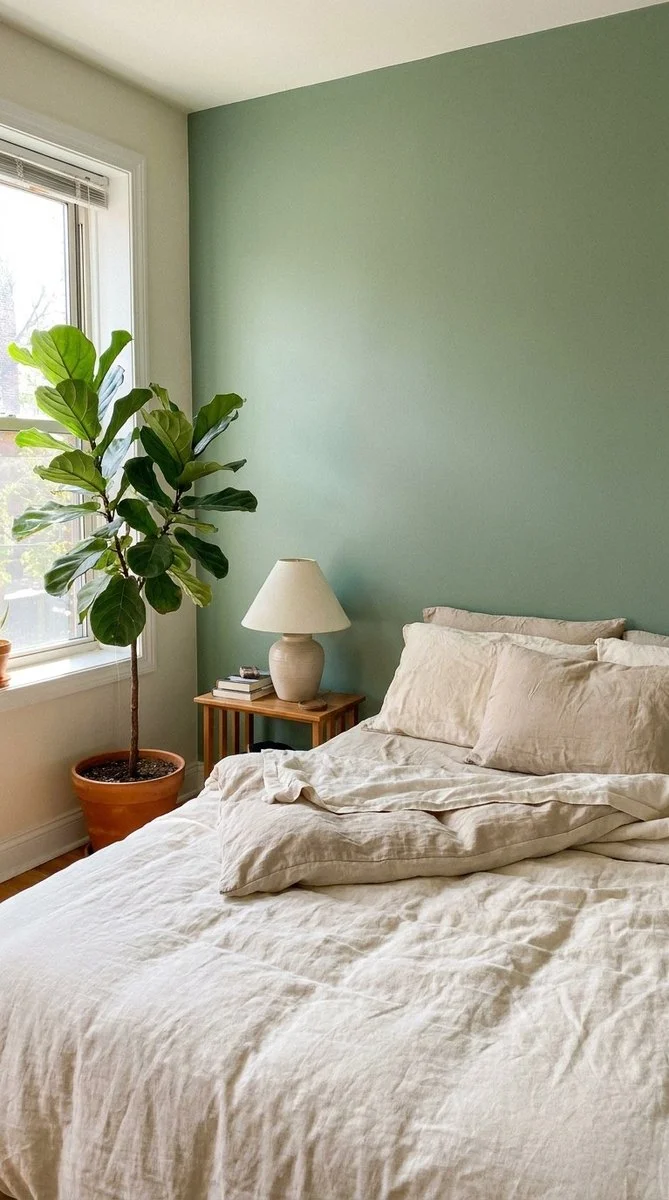
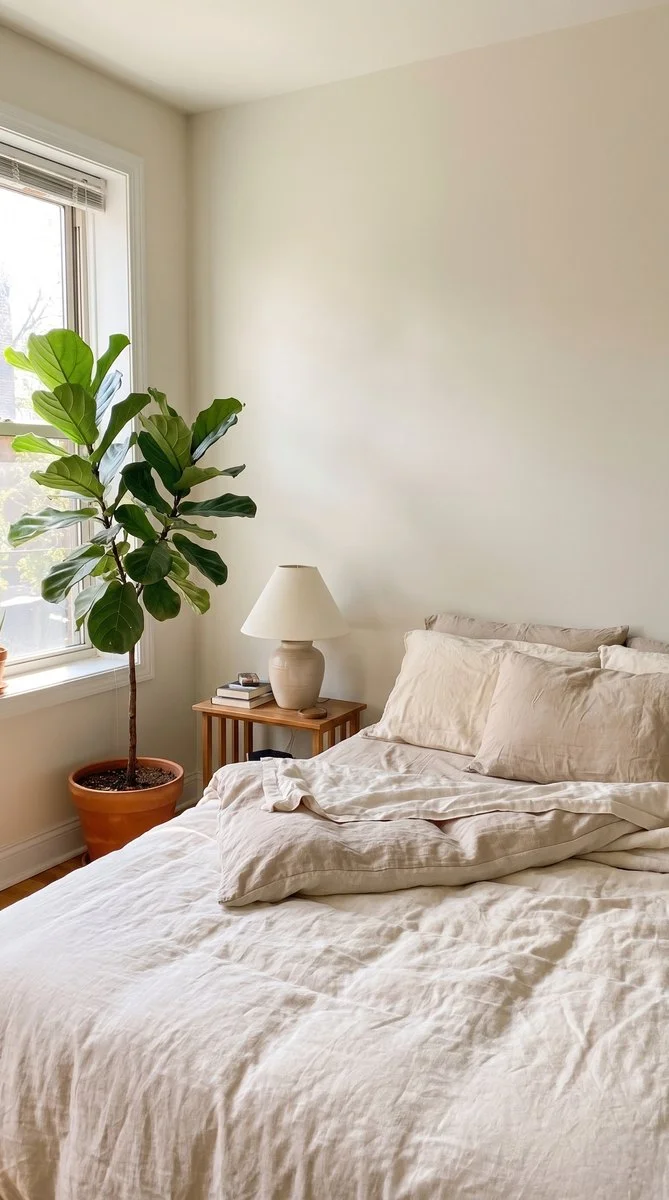
Try it on your photo
How to preview a wall color in your room
Take a clear photo of the room
Choose a view that shows the wall surfaces along with the floor, furniture and window light. A corner view can show how the same color feels on two walls. Keep the camera level and avoid a close-up that removes the surrounding room context.
Choose a color for the walls
Select sage green, white, warm beige, dusty blue, terracotta or soft gray. Use the extra instructions to name the walls you want to change and the surfaces you want to keep. For example, ask to leave the ceiling and white trim unchanged.
Repaint only the visible walls in the selected color. Keep the ceiling, trim, furniture, floor, windows and room layout unchanged.
Compare the room before and after
Switch between the result and the original. Look at how the color sits beside the sofa, flooring and woodwork. Check the edges near windows and furniture, then save the idea or try another shade from the same original photograph.
BeforeAfter
Judge a color in the context of your room
A paint sample on a blank page does not show the sofa, floor or light beside it. A room photo gives a new wall color a familiar setting. This visualizer starts with the chosen shade and asks to preserve furniture, trim and the structure of the room.
See the large surfaces together
Compare the new wall color with the floor, sofa and largest furniture pieces first. A room often reads differently when a color covers a broad surface rather than a small sample. Use the same photo for each shade to keep the comparison consistent.
Explore a quieter or warmer direction
Try a neutral beige or gray alongside a more distinct sage, blue or terracotta option. Keep the furniture unchanged so the main difference is the wall color. If you want only an accent wall, identify it by its position in the photograph.
Save a shortlist before testing paint
Keep a few visual directions you like, then compare physical samples in the actual room. The photo lighting and your screen influence the appearance. Use the generated image to narrow the palette before choosing a real paint product and finish.
Show the walls and the details around them
Include the wall boundaries
Show corners, skirting boards, ceiling edges and window frames where possible. These boundaries help separate the wall from nearby surfaces. Avoid a photo where most of the wall is hidden by a large object or a very dark shadow.
Use ordinary room lighting
Photograph the space in light you regularly see there, rather than using a heavy color filter. A strongly tinted lamp can affect the whole image. If the room looks very different by day and evening, compare previews from separate original photos.
Describe an accent wall by position
Say the wall behind the sofa or the wall with the doorway rather than referring only to a tiny area. The editor follows text instructions; it does not provide a manual paint mask. Inspect the boundary around the requested wall before saving.
Keep the details you like.
Repaint only the visible walls in the selected color. Keep the ceiling, trim, furniture, floor, windows and room layout unchanged.
Questions about wall color previews
Need something else? Contact us.
Upload your room photo, select a color and add any instructions about the surfaces to keep. The preset asks to repaint the visible walls while retaining the room geometry, furniture, windows and trim. Generate the result and compare it with your original.
Choose sage green, white, warm beige, dusty blue, terracotta or soft gray. You can describe a preferred tone in the extra instructions. The selector gives a color direction rather than an exact paint-brand or color-code match.
Describe the wall by a clear landmark, such as behind the bed or beside the window. Ask to keep the other walls unchanged. There is no brush or region-selection control, so check the completed image to see how the instruction was interpreted.
The preset asks to retain furniture, trim, shadows and room geometry while changing the walls. A clear photo helps distinguish the surfaces. Inspect the edges around cabinets, curtains and the floor because an AI edit can alter small details.
This tool does not contain calibrated paint-brand swatches or a physical color-matching system. A named shade or code in the instructions is still interpreted through the image model. Check real paint samples in your own room before buying paint.
Yes. Open the page in your mobile browser and tap Add Your Photo. Your device provides a picker for your photo library, files or camera, depending on the browser. You can download the finished photo or use the share button in the editor.
Choosing a photo and writing instructions is free. Generating the edited image requires a paid plan. Eligible new customers can start with 40 images for $0.99 for three days. The weekly plan then renews at $6.99 per week, or the yearly plan at $59.99 per year with 100 images per month.
The page saves your selected photo and instructions in this browser before sending you to sign-in or the paywall. Continue in the same browser to keep your draft. Checkout returns you to the matching editor. Paying does not start a generation automatically; you press Generate Image when you are ready.