AI kitchen design from photo
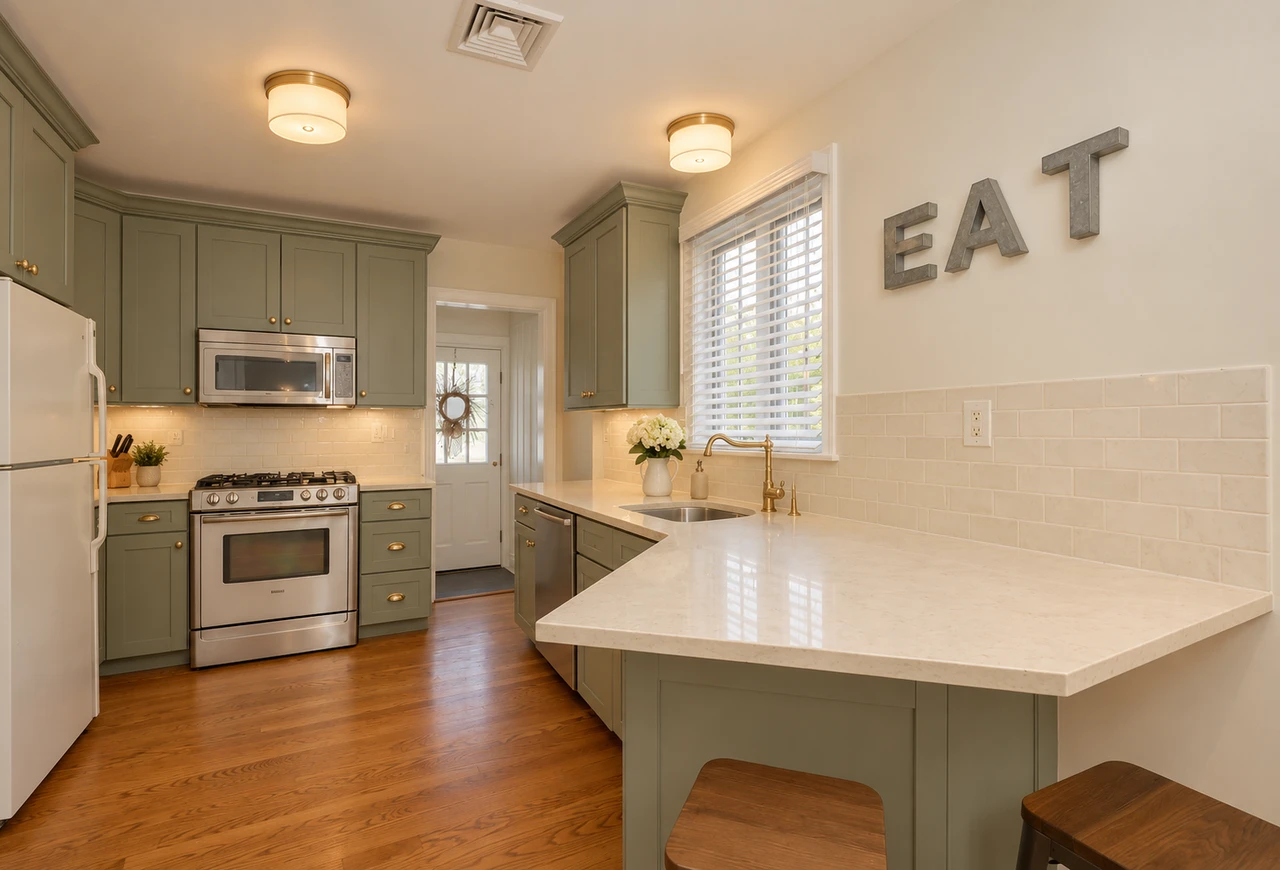
Explore a new look for your own kitchen. Start with warm modern cabinet finishes, light counters and softer lighting, using your photo as the reference.
Try it on your photo
How to redesign your kitchen from a photo
Photograph the kitchen from a corner
Include the cabinets, counters and main appliances in one clear view. Show the windows, doorway and floor if possible. Keep the camera level so the layout is readable and avoid an extreme wide-angle image that stretches the room at the edges.
Describe the finishes and details to keep
The preset starts with sage cabinet fronts, light cream counters, a neutral backsplash and warm lighting. Use the extra instructions to describe another finish or an existing feature you want retained. Keep the first request focused on surfaces rather than changing the whole floor plan.
Keep the kitchen layout, windows, doors, appliances and sink in place. Use sage cabinets, light stone counters and warm modern lighting.
Compare the idea with your original
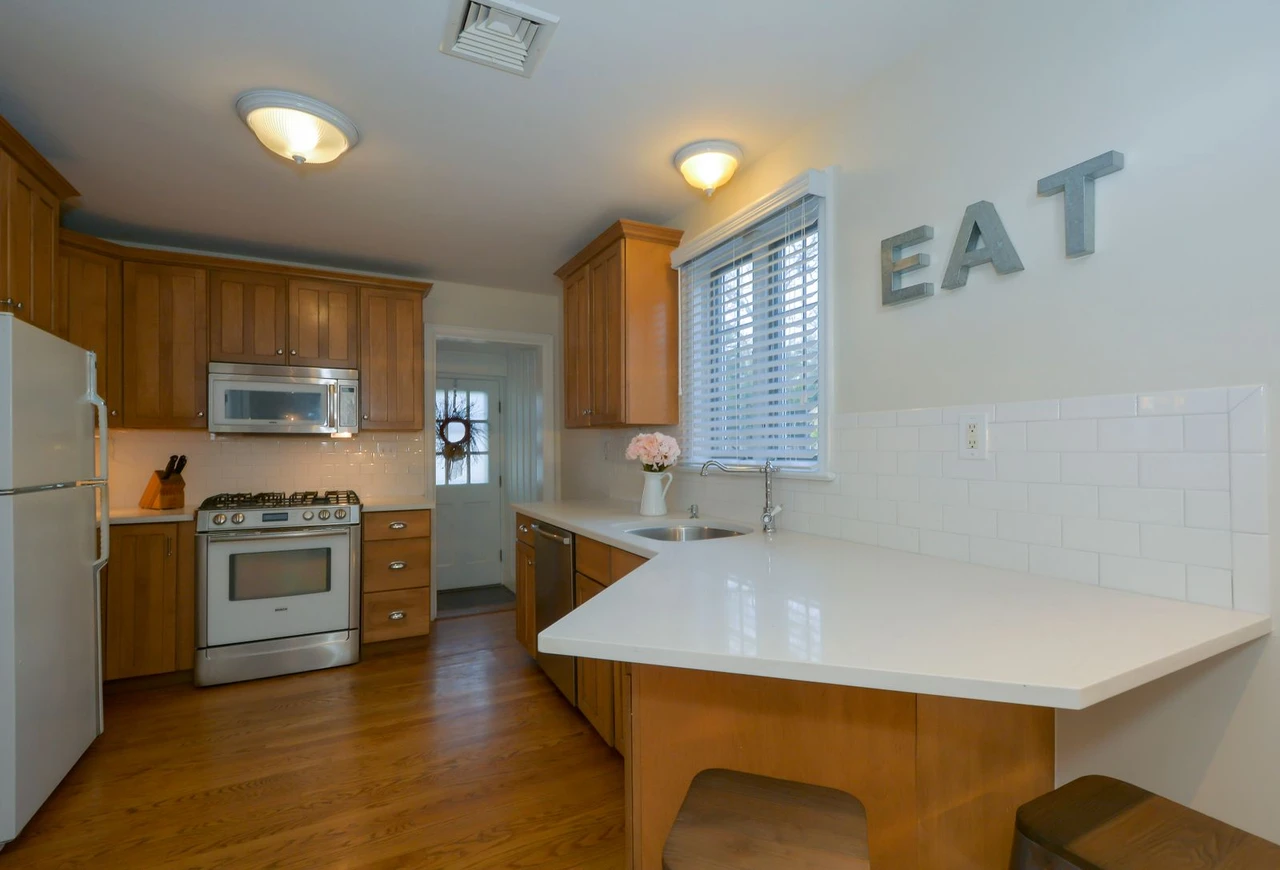
Switch between the generated kitchen and the original photo. Check the position of doors, windows, sink and appliances before focusing on smaller details. Save the finishes you like and use the same original if you want to compare a different design direction.
BeforeAfter
See new finishes in the kitchen you already have
Cabinet samples and countertop pictures are easier to judge when you can imagine them together. A kitchen photo provides a familiar layout for that comparison. This tool creates a warm modern interpretation of the visible cabinets, counters, backsplash and lighting while asking to retain the existing room structure.
Start with cabinets and counters
Look at the largest surfaces first. Sage cabinet fronts and light counters create the starting direction; your instructions can describe another finish. Keep the same original photo when comparing versions so the color and material choices are easier to separate from other changes.
Keep the features that define your room
Mention a window, open shelf or appliance that should stay, especially if it is important to the composition. The preset asks to retain the cabinet layout, room geometry and appliance positions. Check those details in the generated image rather than assuming every edge is unchanged.
Save a visual brief for a conversation
Use the result to explain the palette, cabinet style or lighting you prefer. Bring the original photo as well when discussing the idea with a designer or contractor. Actual dimensions, product compatibility and installation details still need to be checked in the real kitchen.
Give the kitchen design a useful reference
Show where surfaces meet
Include cabinet edges, worktop corners, the backsplash and floor. These boundaries help distinguish the surfaces you want changed. A close-up of one cupboard can be useful for detail, but it gives less context for a whole-kitchen design comparison.
Use balanced daylight
Turn on ordinary room lights if needed and avoid a bright window making all the cabinets dark. The source should show the existing materials and appliance edges clearly. Check that the photo is in focus before adding instructions about small hardware or tile details.
Keep the first design request manageable
Choose a cabinet and countertop direction before adding many conflicting styles. If you want to keep the floor or a particular appliance, say so clearly. Return to the original for each variation so an earlier generated layout does not become the starting point.
Keep the details you like.
Keep the kitchen layout, windows, doors, appliances and sink in place. Use sage cabinets, light stone counters and warm modern lighting.
Questions about kitchen design photos
Need something else? Contact us.
Upload a kitchen photo and describe the finishes you want to explore. The preset requests a warm modern kitchen with sage cabinets, light cream counters, a neutral backsplash and soft lighting, while preserving the layout. Compare the result with your original and save your preferred idea.
Yes. The tool is designed around an existing kitchen photograph rather than a blank room plan. A corner view showing the cabinets, appliances and room boundaries gives the edit a useful reference. You do not need to draw a floor plan to start.
Describe the change in the extra instructions, such as warmer wood cabinets or a lighter countertop. This page uses written instructions rather than a separate material catalogue. It creates an interpretation, so compare the requested finish and surrounding details with the original.
The preset asks to keep room geometry, cabinet layout, windows, doors, appliance positions and the sink location. Generated details can still differ from the source. Use the original as the reference for the actual kitchen and inspect the finished image carefully.
No. The result is a redesigned photograph for exploring an appearance. It does not measure cabinets, calculate materials or produce installation drawings and product orders. Use it as a visual reference alongside real measurements and professional advice when planning work.
Yes. Open the page in your mobile browser and tap Add Your Photo. Your device provides a picker for your photo library, files or camera, depending on the browser. You can download the finished photo or use the share button in the editor.
Choosing a photo and writing instructions is free. Generating the edited image requires a paid plan. Eligible new customers can start with 40 images for $0.99 for three days. The weekly plan then renews at $6.99 per week, or the yearly plan at $59.99 per year with 100 images per month.
The page saves your selected photo and instructions in this browser before sending you to sign-in or the paywall. Continue in the same browser to keep your draft. Checkout returns you to the matching editor. Paying does not start a generation automatically; you press Generate Image when you are ready.