Buzz cut filter
See yourself with a short buzz cut while keeping your natural hair color. Add your photo and compare the shape with your current haircut.
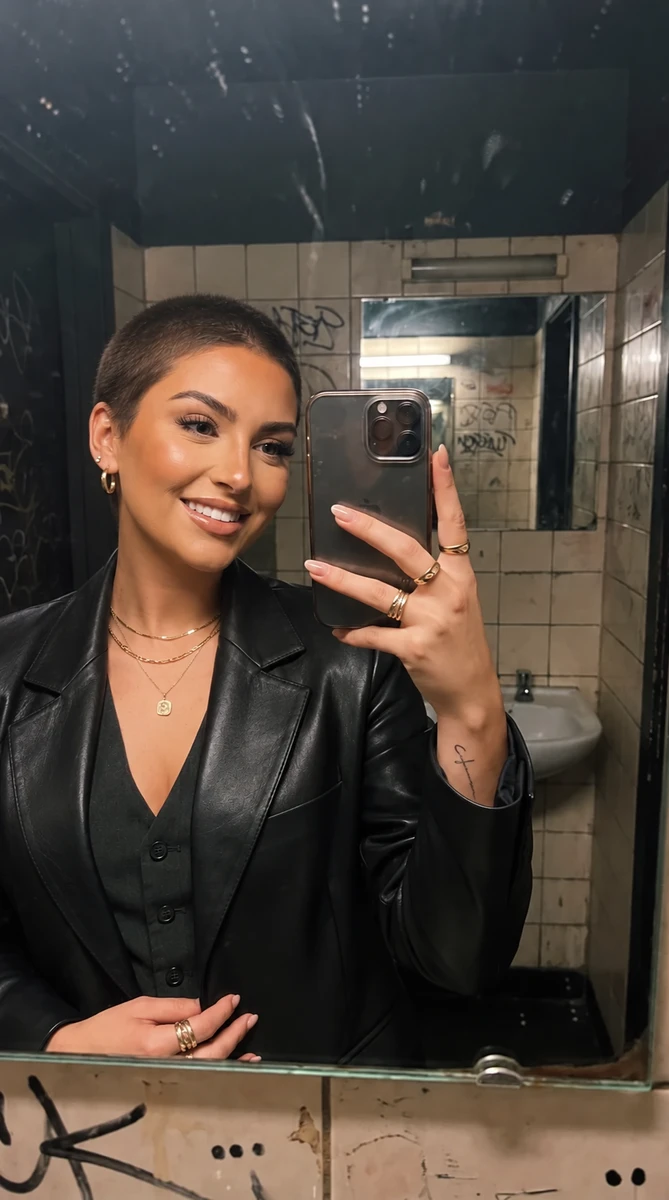
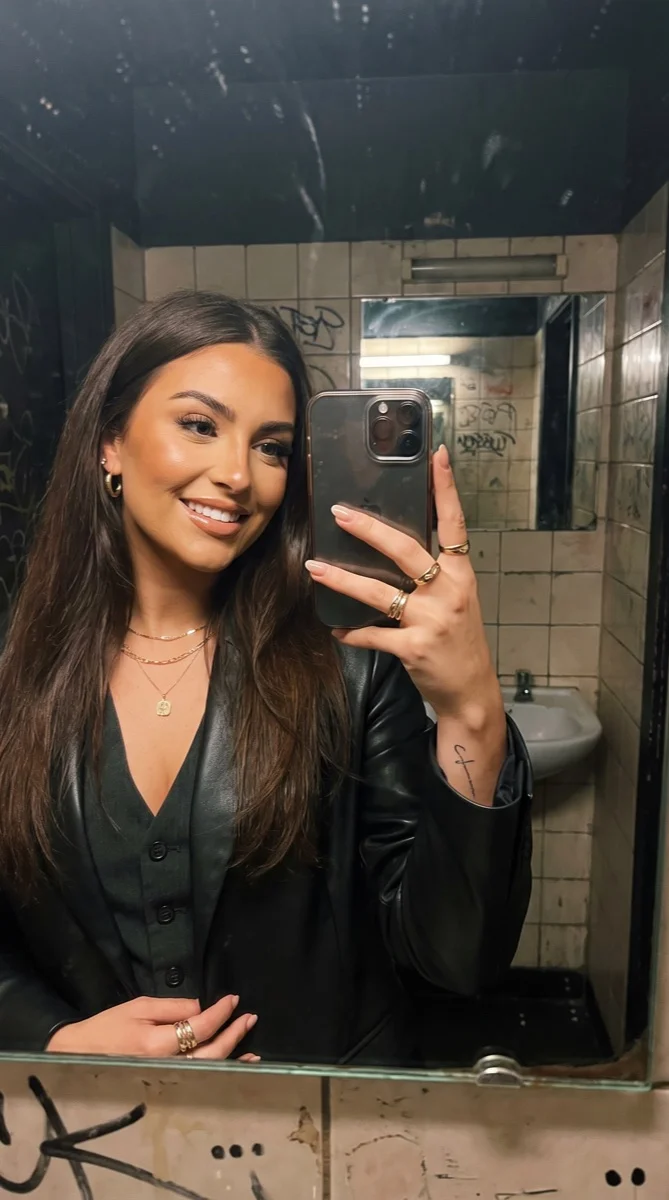
Try it on your photo
How to try a buzz cut on your photo
Start with your whole head visible
Choose a sharp portrait facing the camera or turned slightly to one side. Include the top and sides of your head, both ears if possible, and some space around the hair. A hat or a tight crop hides the outline you want to compare.
Keep the color and change the cut
The plain buzz-cut preset keeps your natural hair color rather than bleaching it. Use the extra instructions to mention a beard, glasses or another detail you want unchanged. Begin with an even short cut so the first comparison is about the overall shape.
Give me a short, even buzz cut in my natural hair color. Keep my face, eyebrows, beard, expression and background unchanged.
Compare with your original
When the photo is ready, switch between the result and the original. Look at the hairline, temples and the balance between your hair and facial hair. Save a version you like or share it before deciding whether to try another angle.
BeforeAfter
See the short-hair shape before reaching for clippers
A buzz cut leaves a short layer of hair across the scalp. It changes the outline around the forehead and ears without creating the completely bare look of a bald filter. Trying it on your own photo helps you focus on your face and existing hair color instead of comparing yourself with someone else.
Compare a buzz cut with a shaved head
If you are deciding how short to go, use the same original portrait for a buzz cut and a bald preview. Keeping the expression and angle consistent makes the remaining hair easier to notice. The two tools create different looks, so save each result separately.
Keep your beard in the comparison
A beard or mustache can change the balance of a very short haircut. Ask to keep its color, length and shape unchanged. Compare the sides of the head and the beard together, especially if your original hairstyle covers the temples or ears.
Take a reference to the barber
Save the result alongside your original and explain what appeals to you: the short outline, visible hairline or cleaner sides. The image can start a conversation about length. It is not a clipper-guard measurement or a prediction of your scalp shape.
Make the haircut easy to judge
Avoid hair covering your face
Move loose strands away from your eyebrows and cheeks before taking the photo. Removing long hair means reconstructing areas behind it. A clear view of your face and ears gives the edit a better starting point than a portrait with hair across most of the face.
Use even light around the hairline
Choose soft daylight rather than a bright light directly behind your head. A dark silhouette makes it harder to distinguish hair from background. Check that the forehead, temples and sides of the head are visible before uploading.
Try the same cut from another angle
After a straight-on preview, use a three-quarter portrait to see more of the side. Treat each image as a separate interpretation. Comparing a few clear views is more useful than repeatedly editing a result that has already changed the original details.
Keep the details you like.
Give me a short, even buzz cut in my natural hair color. Keep my face, eyebrows, beard, expression and background unchanged.
Questions about buzz cuts
Need something else? Contact us.
Upload a portrait to this tool and generate a short-hair preview. The preset asks for a close, even buzz cut while preserving your natural hair color and recognizable facial features. Use the original-photo toggle to compare the result with your current hairstyle.
No. This page uses a plain buzz-cut preset that asks to retain your existing hair color. The separate Bleached Buzz template in the app is a different effect. If keeping a particular shade matters, mention it in the instructions and inspect the result.
No. A buzz cut retains visible short hair and its color, while the bald filter removes the scalp hair. You can try both from the same portrait to compare the difference. Each generated image uses your plan allowance.
You can describe a shorter or slightly longer finish in the instructions, but the tool creates a visual photo edit. It does not calculate an exact guard length. Use the result to discuss the look with a barber rather than as a cutting specification.
Yes. Include the full head and keep hair away from the face where possible. Long hair may cover clothing, ears or the background, which the edit has to reconstruct. Check those areas as well as the new haircut when comparing the result.
Yes. Open the page in your mobile browser and tap Add Your Photo. Your device provides a picker for your photo library, files or camera, depending on the browser. You can download the finished photo or use the share button in the editor.
Choosing a photo and writing instructions is free. Generating the edited image requires a paid plan. Eligible new customers can start with 40 images for $0.99 for three days. The weekly plan then renews at $6.99 per week, or the yearly plan at $59.99 per year with 100 images per month.
The page saves your selected photo and instructions in this browser before sending you to sign-in or the paywall. Continue in the same browser to keep your draft. Checkout returns you to the matching editor. Paying does not start a generation automatically; you press Generate Image when you are ready.