Tattoo try-on
Preview a small fine-line tattoo on your own wrist or forearm. Start with a butterfly and describe the placement you want to compare.
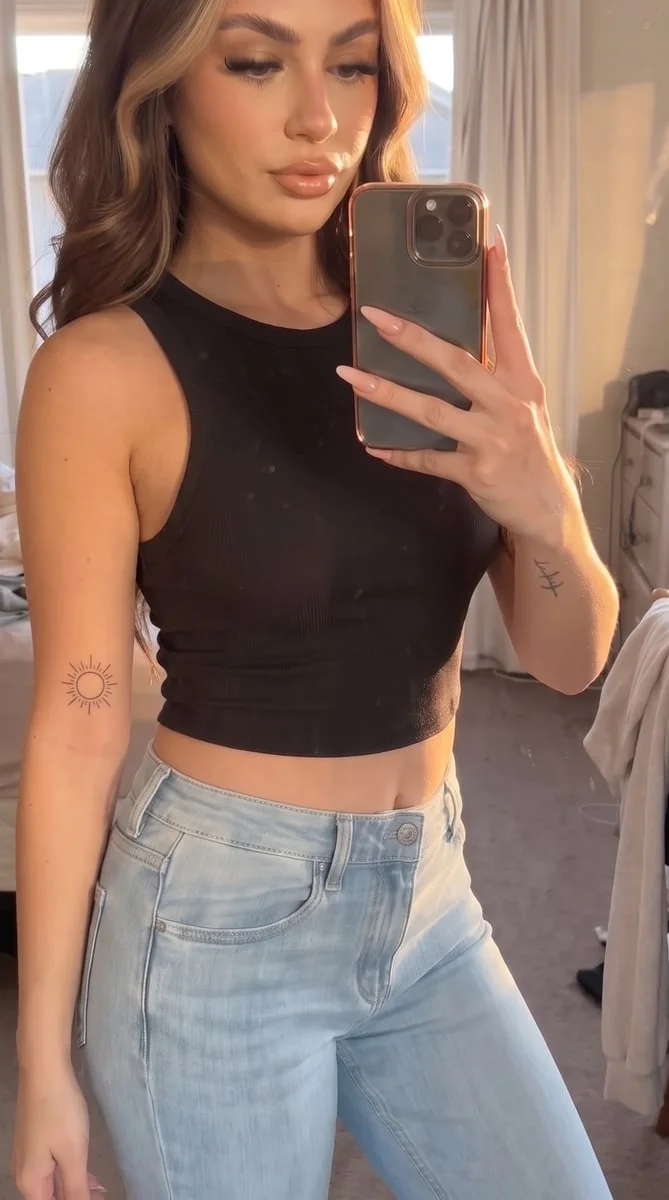
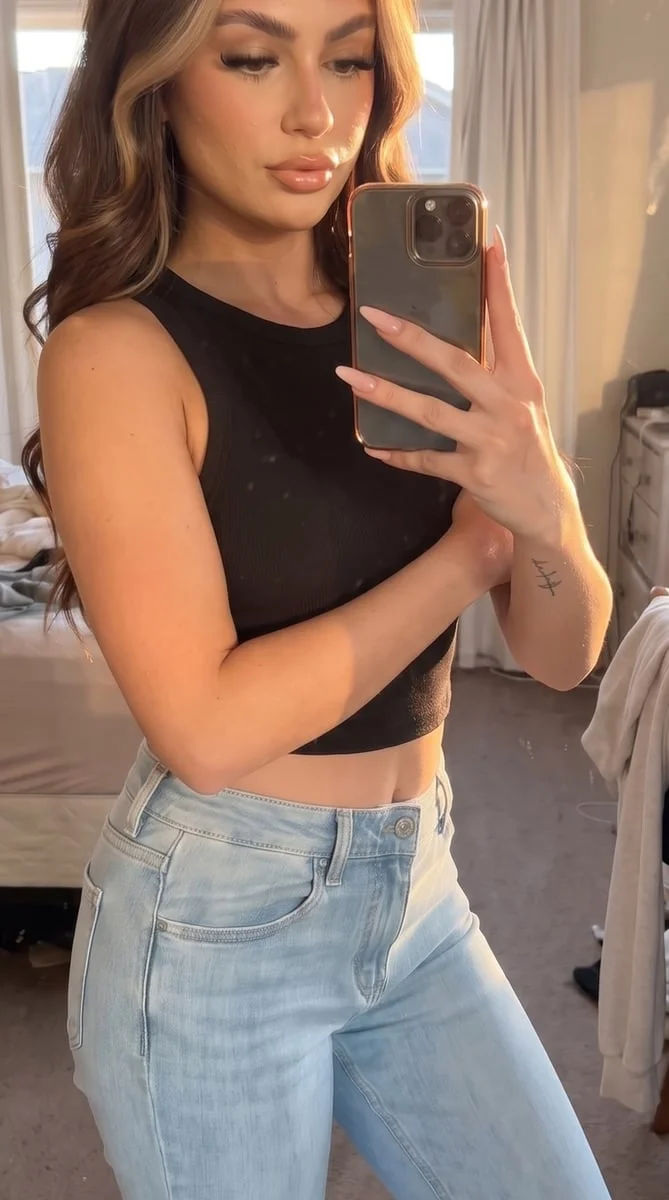
Try it on your photo
How to preview a tattoo on your photo
Show the placement area
Take a clear photo of your wrist or forearm with the skin already visible. Include some space around the area rather than cropping to a tiny patch. Hold the arm naturally so its shape and the direction of the light are easy to see.
Describe the position and scale
The preset starts with a small fine-line butterfly. Add details such as inner forearm, near the wrist or a more delicate outline. Use simple relative size descriptions and say which visible features, clothes or jewelry you want to keep.
Add a small fine-line butterfly on my visible forearm. Keep the skin texture, arm position, clothes and background unchanged.
Look at the whole placement
Compare the edited photo with the original. Notice whether the tattoo follows the arm and whether it feels balanced at normal viewing size. Save the image as a reference or try another version from the original photo with a different position.
BeforeAfter
See an ink idea in the place you would wear it
A drawing on a white page and a tattoo on an arm can feel very different. A photo preview puts the idea beside your skin tone, clothing and existing features. This tool starts with a small fine-line butterfly and uses your visible wrist or forearm as the placement reference.
Compare a subtle detail
A small design is easier to judge when you see the surrounding arm, hand and clothing. Start with a simple outline rather than many tiny details. Zoom out after looking closely so you can judge how noticeable the tattoo is in an ordinary photo.
Explore position before adding detail
Try one position first, then use the same original image for another version. Compare a placement near the wrist with one farther along the forearm. Keeping the pose and design direction similar makes the position change easier to evaluate.
Bring a reference to your artist
Save the version that best explains the idea and show the artist the original too. They can discuss line weight, spacing and placement on your actual arm. The generated photo is a visual reference, not a stencil or a prediction of healed ink.
Help the ink sit naturally in the photo
Leave the skin unobstructed
Use a photo where the placement area is visible without moving clothes in the edit. A sleeve, watch or bracelet can cover the area you mean. Keep nearby jewelry in the frame if you want to compare how the tattoo looks beside it.
Avoid harsh shine and deep shadows
Choose soft light that shows skin texture without bright glare. A tattoo placed across a strong shadow is harder to compare. Keep the camera focused on the arm so the outline is not built on a blurry source image.
Keep the request simple
Ask for one small design in one position before trying a more elaborate idea. If the result looks too large or dark, return to the original and make that change explicit. Editing an already generated tattoo can carry unwanted details into the next version.
Keep the details you like.
Add a small fine-line butterfly on my visible forearm. Keep the skin texture, arm position, clothes and background unchanged.
Questions about tattoo try-on
Need something else? Contact us.
Add a photo of a visible adult wrist or forearm. The preset requests a small fine-line butterfly that follows the skin and existing light. Write any extra placement instructions, generate the image and compare it with your original photo.
This tool accepts one source photo and written instructions. It does not have a second design-upload field or a draggable design overlay. You can describe an idea in words, but it does not guarantee an exact reproduction of a separate drawing.
No. Placement and relative size are described through the extra instructions. The tool generates a new photo rather than letting you drag a flat sticker on top. To compare another position, use the original photo and describe the change.
This page starts with the small-tattoo preset. The app also has a separate tattoo-sleeve template for a visible arm. A sleeve and a small wrist tattoo are different effects, so choose the matching template rather than expecting both from the same preset.
No. It is a still-photo edit showing an interpretation of ink on skin. It does not simulate healing, skin movement or how lines will age. Use the image to discuss the design and placement with a tattoo artist.
Yes. Open the page in your mobile browser and tap Add Your Photo. Your device provides a picker for your photo library, files or camera, depending on the browser. You can download the finished photo or use the share button in the editor.
Choosing a photo and writing instructions is free. Generating the edited image requires a paid plan. Eligible new customers can start with 40 images for $0.99 for three days. The weekly plan then renews at $6.99 per week, or the yearly plan at $59.99 per year with 100 images per month.
The page saves your selected photo and instructions in this browser before sending you to sign-in or the paywall. Continue in the same browser to keep your draft. Checkout returns you to the matching editor. Paying does not start a generation automatically; you press Generate Image when you are ready.