Car color changer
Preview a new color on your own car. Choose a shade for the painted body and compare the result with the original vehicle photo.
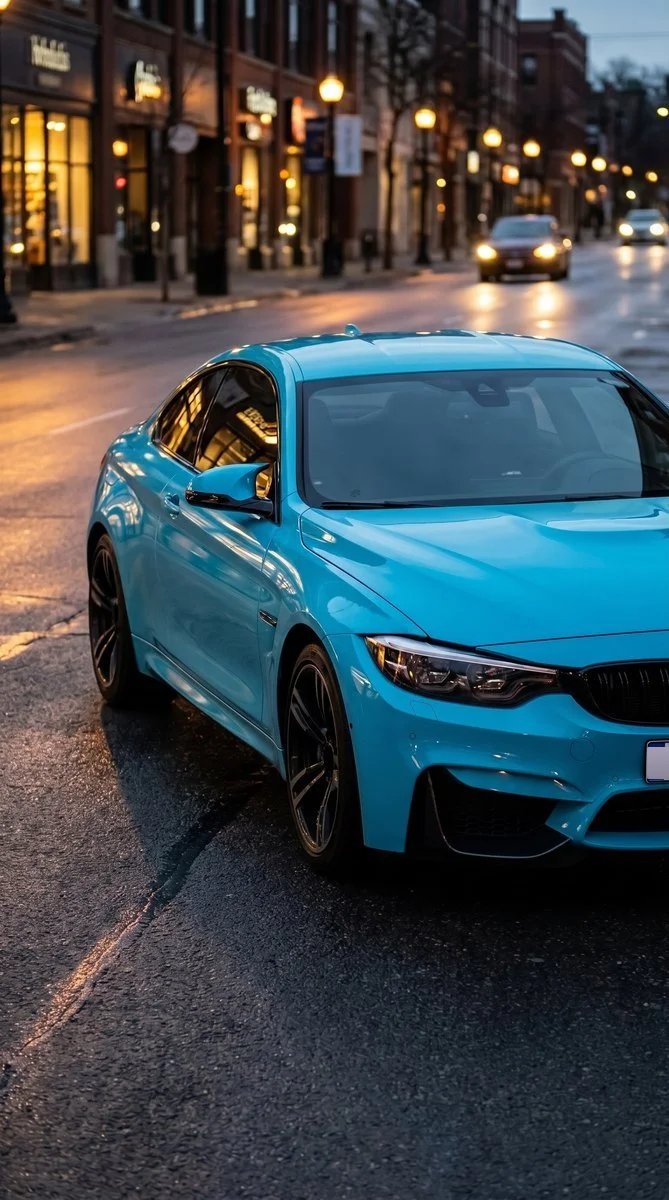
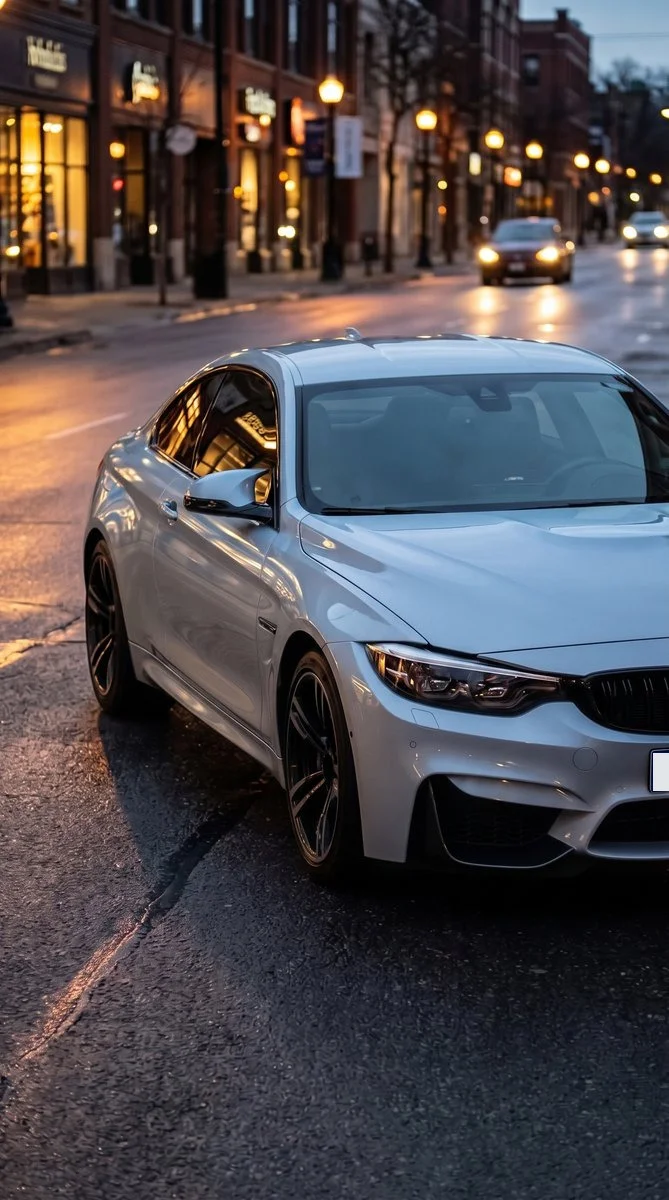
Try it on your photo
How to change a car color in your photo
Show the car and its body panels
Choose a sharp photo with most of the vehicle visible. A front three-quarter view often shows the bonnet, side panels and roof together. Leave space around the car rather than cropping through the wheels or hiding the body behind another object.
Choose the color you want to compare
Select turquoise blue, deep red, black, white, navy blue or silver. Add details about trim or parts to keep in the extra instructions. Start with one body color so you can judge it against the wheels, windows and surroundings.
Use the selected color on the painted body panels only. Keep the wheels, windows, lights, trim, body shape and background unchanged.
Check the result from the same angle
Switch to the original and inspect the body lines, lamps and trim. Look at the reflections as well as the overall shade. Save the preview or try another color using the original photograph rather than recoloring an already generated result.
BeforeAfter
See a new body color on a familiar vehicle
A color looks different across a bonnet, a curved wing and a shaded door. This editor puts a requested shade onto a photograph of your own car. It asks to preserve the vehicle model and panel geometry while changing the painted exterior and keeping reflections coherent.
Compare a bold color with a neutral
Try a red or turquoise direction beside black, white or silver using the same source photo. A consistent angle makes it easier to judge the color on the actual body shape. Look at large panels first before focusing on small badges or trim.
Keep wheels and trim as reference points
Ask to leave wheels, glass, lamps and unpainted trim unchanged. These details help you recognize the car and compare the body color against familiar surfaces. Check them in the final image instead of judging only the brightest painted panel.
Bring an idea to a wrap or paint shop
Save the image as a visual reference when explaining the general color you like. A shop can show physical samples and discuss available finishes. The photo preview does not select a manufacturer paint code or calculate the materials for your vehicle.
Make the painted body easy to identify
Use a clear view in even light
Choose daylight with enough detail in both highlights and shadows. Strong colored lights or deep reflections can make the existing body color harder to separate. Avoid heavy motion blur, rain on the lens or a photo taken from far away.
Include edges and neighboring materials
Keep the wheels, window edges and trim visible so the painted surfaces have clear boundaries. A close crop of a single panel provides less context than a view of the whole car. If only one area should change, describe it clearly.
Keep the first request focused
Start with body color before asking for a complex graphic or several different finishes. If the result changes a wheel or lamp, return to the original and name that detail explicitly. A simple request is easier to compare with the unedited photograph.
Keep the details you like.
Use the selected color on the painted body panels only. Keep the wheels, windows, lights, trim, body shape and background unchanged.
Questions about car color previews
Need something else? Contact us.
Upload a clear photo, choose a body color and add details to keep if needed. The tool requests a recolored version of the same car with the original model, shape, wheels, lamps, glass and trim preserved. Compare the finished photo with the original.
The menu includes turquoise blue, deep red, black, white, navy blue and silver. Additional instructions can describe a more specific direction. The generated image is a visual interpretation of that color rather than a calibrated paint or wrap sample.
No. It edits one still photograph of the vehicle. You can compare another angle by uploading another original photo, but you cannot rotate a 3D model inside this tool. Each generated photo uses your plan allowance.
Yes. The preset asks to preserve the wheels, lamps, glass and trim while changing the painted body. Mention a particular detail when it matters and inspect the finished image. Reflections and very dark surfaces can make boundaries harder to interpret.
No exact match is guaranteed. The source lighting, model interpretation and display affect the appearance. Use the image to discuss a color direction with a professional and compare physical samples before choosing a specific paint or wrap product.
Yes. Open the page in your mobile browser and tap Add Your Photo. Your device provides a picker for your photo library, files or camera, depending on the browser. You can download the finished photo or use the share button in the editor.
Choosing a photo and writing instructions is free. Generating the edited image requires a paid plan. Eligible new customers can start with 40 images for $0.99 for three days. The weekly plan then renews at $6.99 per week, or the yearly plan at $59.99 per year with 100 images per month.
The page saves your selected photo and instructions in this browser before sending you to sign-in or the paywall. Continue in the same browser to keep your draft. Checkout returns you to the matching editor. Paying does not start a generation automatically; you press Generate Image when you are ready.