AI Polaroid generator
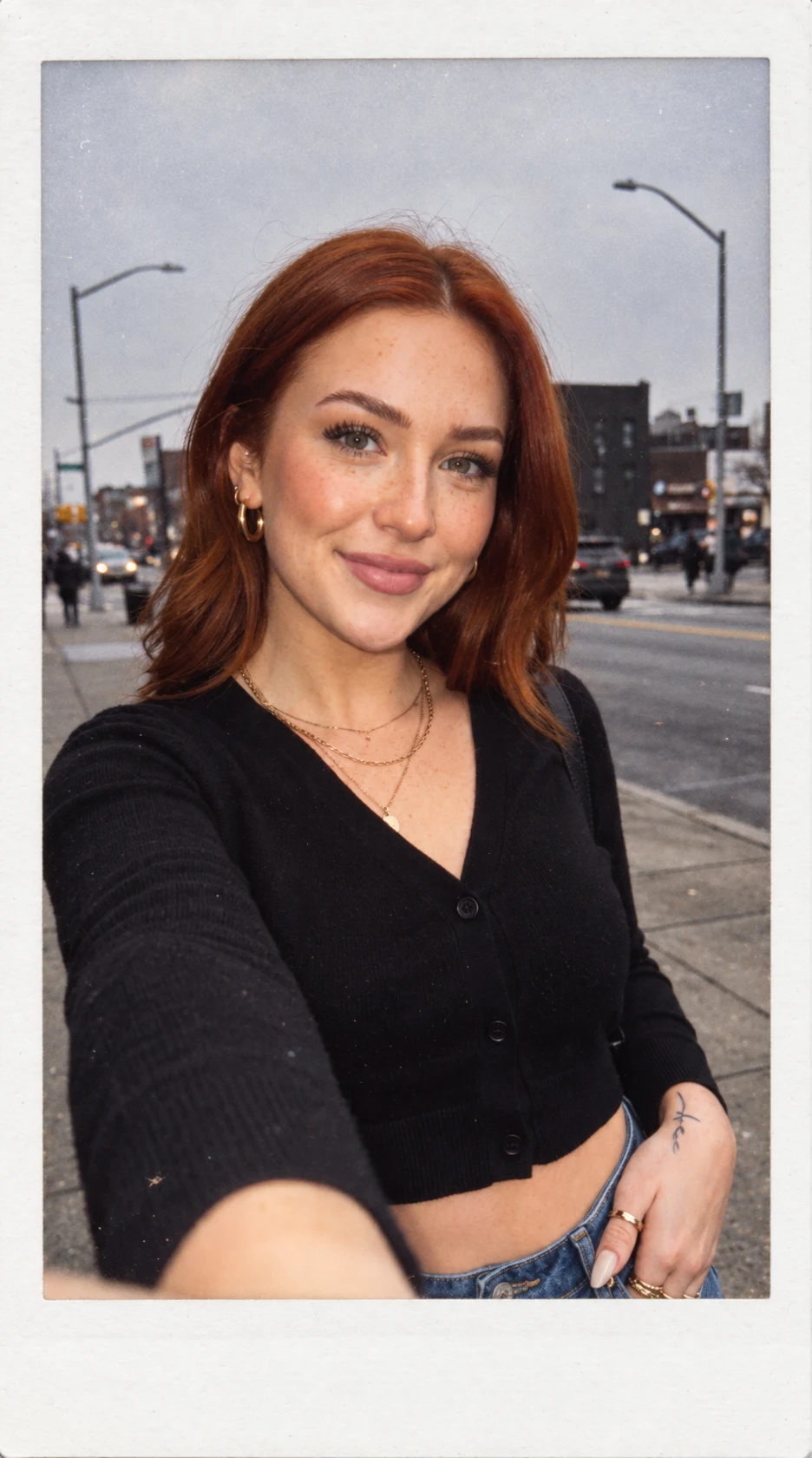
Give a favorite photo an instant-film look, with warm tones and a white border. Start with your own picture and keep the details that make it yours.
Try it on your photo
How to make a Polaroid-style photo
Pick the moment you want to keep
Choose a clear portrait or scene with the important details visible. Leave some room around heads, hands and objects so the print border does not compete with them. A photo with a simple composition gives the finished instant-film frame a clear subject.
Describe the film finish
The preset adds a flat white border, a wider lower margin and subtle warm film texture. Add an instruction if you want a softer color palette or a detail left untouched. Keep the first request focused on the film look before changing the subject or the scene.
Give this photo a warm instant-film look with a flat white border and a wider blank bottom margin. Keep my face, expression, outfit and the scene recognizable. No caption or date.
Compare and save the finished frame
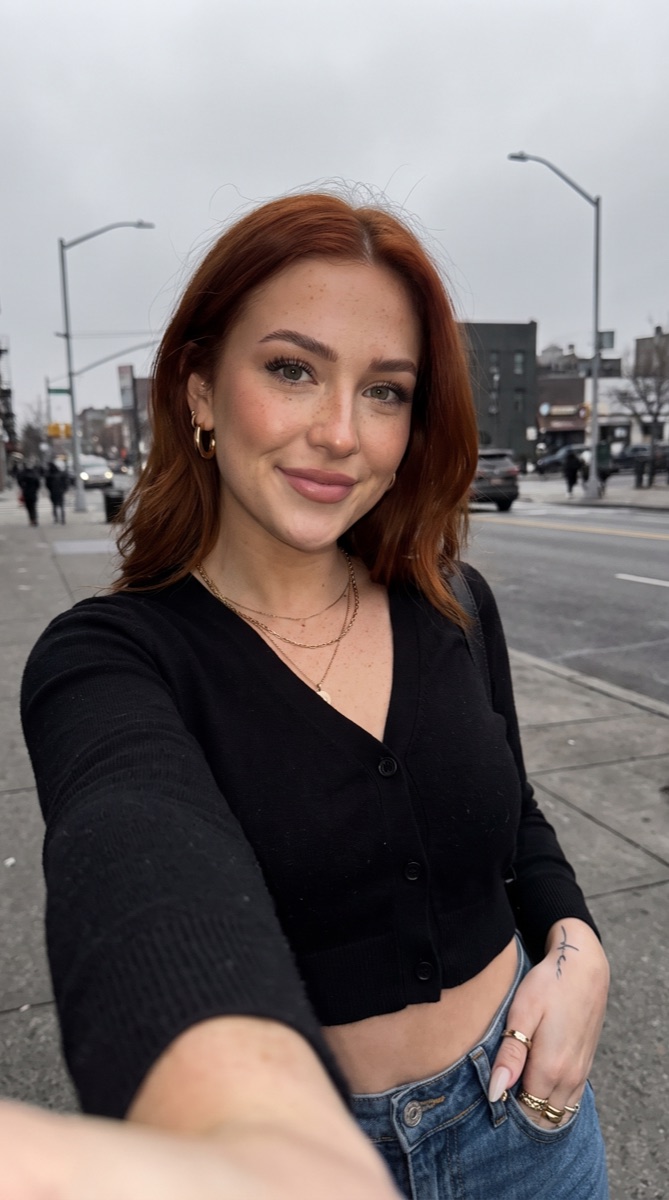
Switch between your original and the generated image. Check the face, background details and the shape of the border. Download the version you prefer or share it from the result screen. For another attempt, start from the original so earlier film effects do not accumulate.
BeforeAfter
One familiar moment, with an instant-film finish
The appeal of an instant photo is the small, self-contained memory: one frame, a little grain and a border you could imagine holding. This generator starts with your photograph and asks for that finished-print appearance. It keeps the main subject as the reference instead of inventing a new person or an unrelated scene.
Give everyday photos a consistent look
A walk, a coffee stop or a relaxed portrait can work better than an elaborate staged scene. Start with an image whose expression and setting you already like. The film treatment changes the presentation, so you do not need to ask for a new location or a different pose to make the result interesting.
Make a small collection from separate moments
Use a similar instruction on several original photographs for a coherent set. Compare the warmth, border and contrast across the finished images. Each generation creates one image, so you can choose which pictures belong together before arranging them in a post, collage or album using your usual layout tool.
Keep the bottom margin simple
A blank lower margin leaves room to add a date or short note later. If exact wording matters, place it in a text editor after downloading rather than asking the model to draw it. That keeps spelling and alignment under your control while the generated image supplies the photographic finish.
Get more from your photo
Choose detail over heavy processing
A sharp source gives the model more useful information than a screenshot of an already filtered picture. Start with the original camera file where possible. The finished look may be softer and warmer, but those choices work better when the source has clear facial features and readable light.
Leave space for the print border
If your subject already touches every edge, choose a wider original rather than a tighter crop. The white frame becomes part of the generated composition. Check that hair, fingers and other important details still feel comfortably placed inside the final picture.
Ask for one print at a time
The preset is for a single flat instant-photo image. A pile of prints, a hand holding a print or a person stepping out of the border is a different composition. Keeping the request to one straight frame makes the subject and film treatment easier to compare.
Keep the details you like.
Give this photo a warm instant-film look with a flat white border and a wider blank bottom margin. Keep my face, expression, outfit and the scene recognizable. No caption or date.
Questions about Polaroid-style photos
Need something else? Contact us.
It makes a still image with an instant-film appearance: a white border, a wider blank lower margin, warm tones and subtle grain. Your uploaded picture is the reference. The result is a generated photographic interpretation rather than a physical print from an instant camera.
No. This tool creates a conventional flat print. The separate 3D Polaroid template makes the subject appear to step out of a photographic frame. Choose this page when you want a simple instant-film finish rather than an image with a pop-out illusion.
You can request a caption in the instructions, but exact text is better added after downloading. The default leaves the lower margin blank. That gives you space for a readable date, name or message without making generated lettering part of the photo.
The preset asks to retain the subject, expression and setting, but AI generation can reinterpret small details. Compare the result with your original. If you need pixel-identical content with only a frame added, use a conventional frame editor rather than a generative effect.
This page accepts one source photo. It can style a photograph that already includes more than one person, but it does not offer two separate uploads. Use the app’s dedicated two-photo Combine or Couple Photo flow if your starting point is two different portraits.
Yes. Open the page in your mobile browser and tap Add Your Photo. Your device opens its native photo picker, which may offer your library, files or camera. The finished image can be downloaded or shared from the editor. There is no separate app to install.
You can select a photo and write instructions before paying. Generation requires paid access. Eligible new customers can start with 40 images for $0.99 for three days. Weekly then renews at $6.99 per week. Yearly renews at $59.99 per year and includes 100 images released each month.
The tool saves your photo and instructions in this browser before opening sign-in and the paywall. Continue in the same browser to keep the draft. You return to the matching editor with the details filled in. Paying never generates an image automatically; press Generate Image when you are ready.