Wolf cut filter
Preview a layered wolf cut on your own photo. See crown volume, a wispy fringe and shaggy lengths while keeping your current hair color.
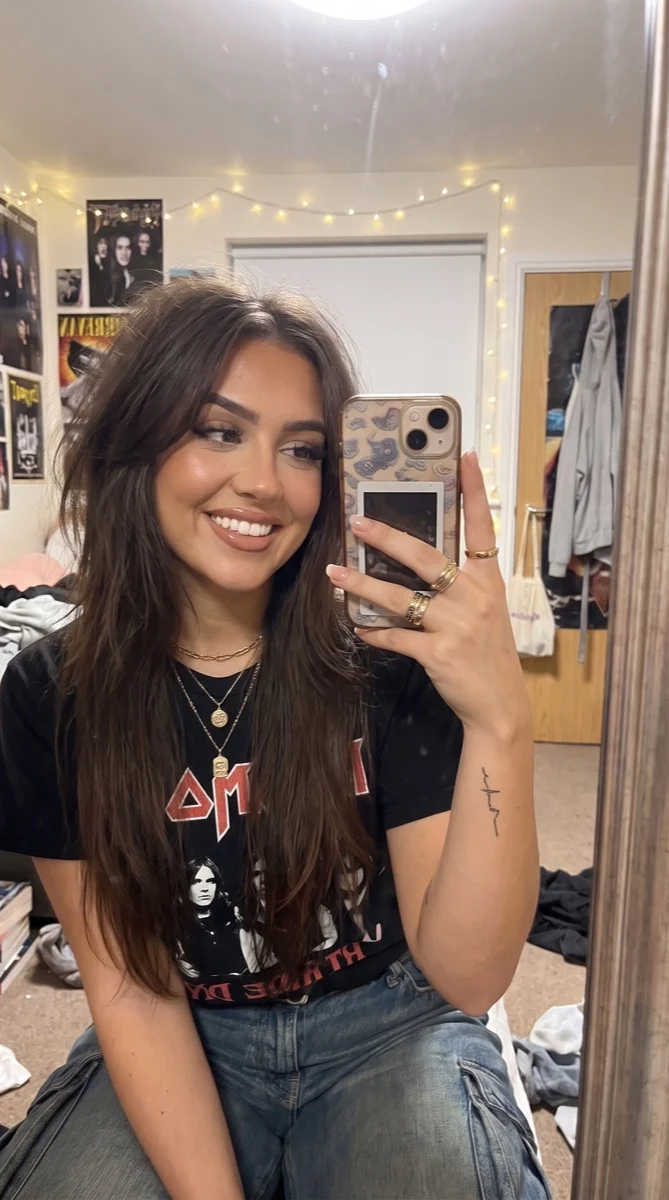
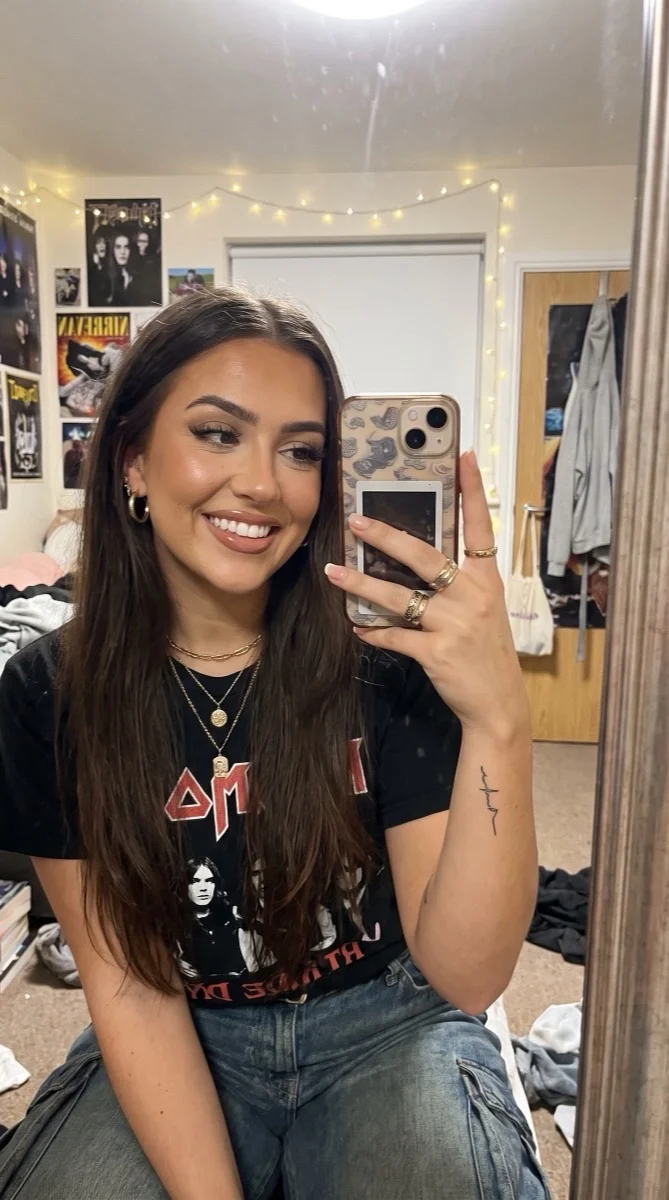
Try it on your photo
How to try a wolf cut on your photo
Choose a portrait that shows your hair
Use even light and a view with the top, sides and ends visible. A front-facing photo makes it easier to compare the fringe and face-framing layers. Avoid a hat, a tightly cropped crown or hair hidden behind your shoulders if those areas are part of the look you want.
Describe the layers you want
The default is a layered wolf cut with crown volume, a wispy fringe and tapered shaggy lengths. Add a short note about preserving your length or existing texture. There is one preset with written instructions, so you do not need to choose from a complicated list of haircut settings.
Give me a layered wolf cut with crown volume, a wispy fringe and shaggy tapered lengths. Keep my current hair color, face, expression and background unchanged.
Compare the outline with your original
Check the crown, the sides beside your cheeks and the ends. Switch back to the original to see how much the shape changed. Keep your color and expression as steady references, then download a version that communicates the particular parts of the style you want to discuss.
BeforeAfter
See the layers around your own face
A wolf cut combines volume near the crown with lighter, shaggy lengths and a textured outline. Reference photos show how it sits on someone else. Your own portrait lets you compare the fringe, shape around the cheeks and overall length beside features you already know, while the preset asks to retain your existing hair color.
Compare shape before thinking about color
Keep the first edit focused on layers. Changing the color at the same time can make it harder to judge whether you like the actual cut. Compare the outline and the strands around your face with the source, then use the separate hair-color tool if you want to explore a new shade.
Explain the length you want to keep
A shoulder-length source gives a different reference from a short crop or very long hair. Mention the length that matters to you, such as keeping the ends below the shoulders. The model interprets the request visually, so look at the finished silhouette rather than treating it as a measured cutting guide.
Bring a useful reference to the salon
Save the original and the preview together. You can point to the crown volume, fringe or tapered ends you like without expecting every generated strand to be reproduced. A stylist can explain how your actual texture, growth pattern and daily styling routine affect a real version of the cut.
Get more from your photo
Show the crown and the ends
The cut changes both the top volume and the lower silhouette. A portrait that crops out either part leaves more for the model to reconstruct. Leave a little space above the head and include the full visible length so the preview has a useful starting shape.
Keep natural texture in the request
Mention waves or curls if you want them to remain visible. A heavily straightened reference can suggest a different finish from your everyday hair. The image is a style idea, so choose a source that resembles how you normally wear your hair when making the comparison.
Compare with a different fringe
If your main question is the hair across your forehead, try the curtain-bangs page too. A fringe-focused preview and a full wolf-cut preview answer different questions. Use the same original portrait for both so a different pose or light does not distract from the change.
Keep the details you like.
Give me a layered wolf cut with crown volume, a wispy fringe and shaggy tapered lengths. Keep my current hair color, face, expression and background unchanged.
Questions about wolf cut previews
Need something else? Contact us.
It asks for layered hair with crown volume, a wispy fringe and tapered shaggy lengths. The preset keeps the original hair color and asks to preserve the face, expression and background. Use the extra instructions to name a length or texture you would like retained.
Curtain bangs mainly describe a parted fringe around the face. A wolf cut changes the layers and overall silhouette as well as the fringe. The separate curtain-bangs tool is useful when you want to compare a smaller change instead of reshaping the whole hairstyle.
The default prompt explicitly preserves the existing color. Keep your extra instructions focused on shape if you want that comparison. The separate hair-color changer offers color choices when you are ready to explore a shade rather than a different haircut.
You can use a clear photo of your current hair and describe the texture or length you want to keep. The preview is generated from the visible reference. Very short or hidden hair requires more reconstruction, so check the shape and curls closely after generation.
Use it as a visual reference, not a technical cutting plan. The photo does not measure your hair or account for growth patterns and styling effort. Bring the original as well as the preview to a stylist and explain which layers, fringe and overall length appeal to you.
Yes. Open the page in your mobile browser and tap Add Your Photo. Your device opens its native photo picker, which may offer your library, files or camera. The finished image can be downloaded or shared from the editor. There is no separate app to install.
You can select a photo and write instructions before paying. Generation requires paid access. Eligible new customers can start with 40 images for $0.99 for three days. Weekly then renews at $6.99 per week. Yearly renews at $59.99 per year and includes 100 images released each month.
The tool saves your photo and instructions in this browser before opening sign-in and the paywall. Continue in the same browser to keep the draft. You return to the matching editor with the details filled in. Paying never generates an image automatically; press Generate Image when you are ready.