AI photo strips
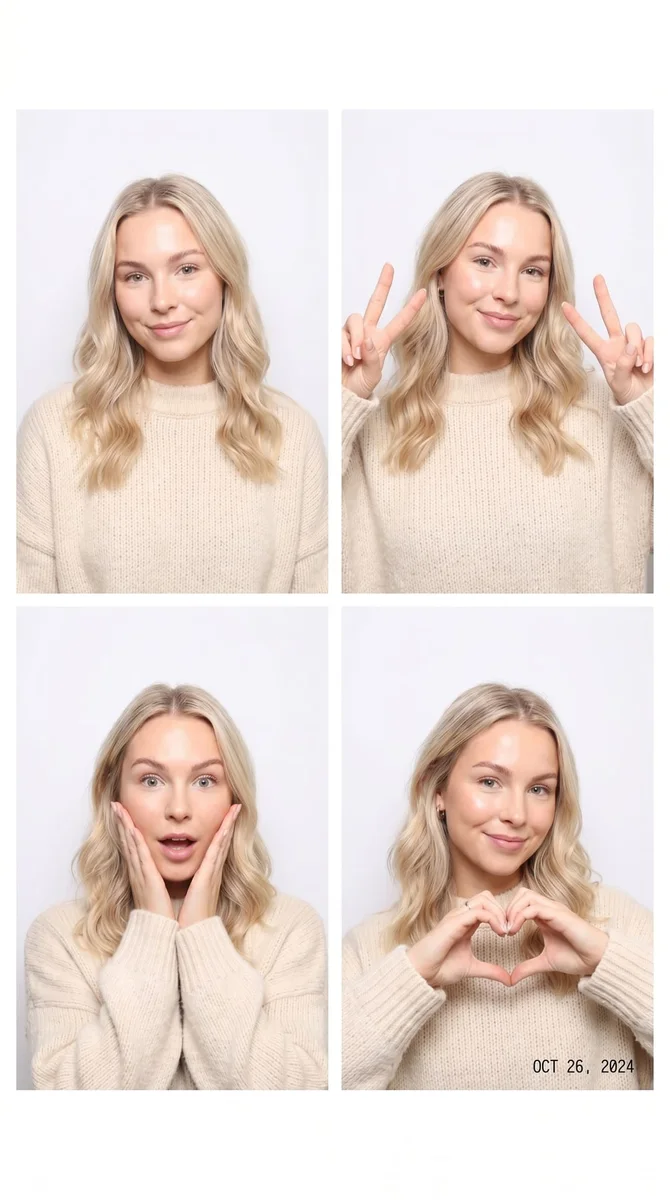
Turn one portrait into a four-frame photo booth image. Keep a familiar face and outfit while trying small changes in pose and expression.
Try it on your photo
How to make an AI photo booth strip
Choose one clear portrait
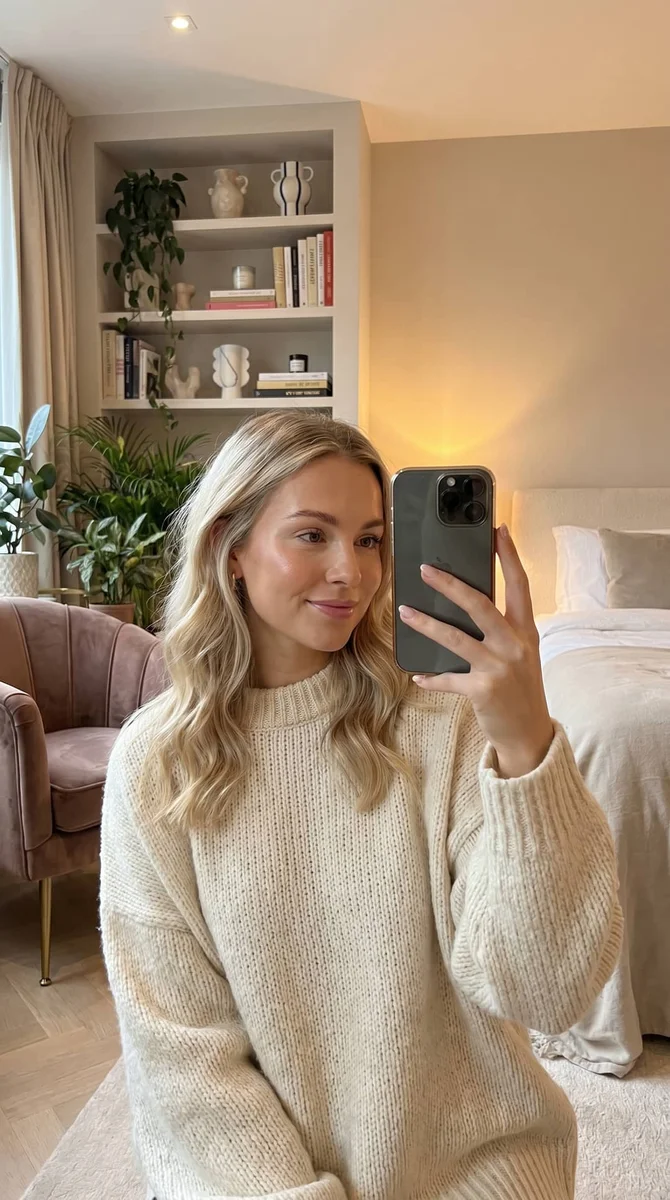
Use a front-facing or gently angled photo with a visible face and shoulders. A simple outfit and even light make the person easier to keep consistent. You do not need four different pictures; the tool generates the pose and expression variations from this one reference.
Describe the booth mood
The starting format is a clean four-frame Korean-style booth image with a neutral pastel backdrop. Add a short instruction about the expressions or the background if you want. Ask to keep the same hair and outfit across the panels so the composition feels like one session.
Create a clean four-frame Korean-style photo booth strip of me with a neutral pastel backdrop. Use friendly small pose changes. Keep my face, hair and outfit consistent across all four frames.
Review all four frames together
Check the face, clothing and hands in every panel rather than judging only the first portrait. Count the frames and compare the overall spacing. Save the image you prefer or try another request from the same original if you want a different set of expressions.
BeforeAfter
Four moments from one reference photo
A photo booth strip tells a little story through small changes: a smile, a glance and a different pose in the next frame. This generator uses one portrait as the reference and creates a four-frame Korean-style booth image. The poses are generated variations, so you can explore the look without needing four separate source photographs.
Make a portrait that feels less formal
Small expression changes can make a set feel relaxed without requiring a dramatic scene. Start with a photo where your face and outfit are clear. Ask for friendly, modest pose changes so the person remains recognizable across the strip instead of looking like four unrelated portraits.
Try a clean Korean-style booth look
The preset uses a neutral pastel background and a consistent outfit. That leaves attention on the face and poses. If you prefer a different general backdrop color, describe it in the extra instructions. Keep decoration requests simple so the frames and the subject still have room to breathe.
Save a strip for messages or a collage
Download the finished image as one composition and share it as a post, message or part of a larger layout. If you want individual panels, crop copies in your usual editor. Keep the full original download too, so you can return to the complete strip without rebuilding it from cropped versions.
Get more from your photo
Keep the face easy to read
A very small face in a wide landscape photo gives the model less useful detail for each portrait. Choose a source where the face and upper body are already prominent. Avoid sunglasses, motion blur or a hand covering the features you want repeated across the strip.
Request small pose changes
A gentle smile or slight head turn is easier to compare with the source than four dramatic poses with many props. Keep the first version simple. If hands are part of the request, inspect fingers in every panel before sharing the completed image.
Separate generation from precise layout work
The model creates the portraits and the composition together. If you need fixed print dimensions, exact margins or text in a specific position, adjust the downloaded image in a layout editor. Use the generated strip for the visual idea and handle measured formatting in a tool made for it.
Keep the details you like.
Create a clean four-frame Korean-style photo booth strip of me with a neutral pastel backdrop. Use friendly small pose changes. Keep my face, hair and outfit consistent across all four frames.
Questions about photo booth strips
Need something else? Contact us.
One clear portrait is enough for this preset. The model uses it as the reference for four generated booth-style frames with small pose changes. You do not upload four separate shots, and the new expressions are not additional photographs captured by your camera.
No. This page generates a booth-style composition from one source portrait. It does not arrange four unchanged uploaded photographs. If you already have the exact four pictures you want, a conventional collage editor gives you direct control over their order, crop and spacing.
Yes. Describe a general backdrop color or a few friendly expressions in the extra instructions. The default is a neutral pastel background with consistent lighting and clothing. There are no individual panel controls, so review the whole composition to see how the request was interpreted.
This is a still-image editing tool, not a timed camera booth or an event kiosk. Your phone’s photo picker may let you take a source picture, then you generate the strip from that image. It does not capture a sequence of guests or automatically print photographs.
The result downloads as one composed image. There are no separate panel exports on this page. You can crop copies after downloading if you want individual portraits. For printing, check the file dimensions and make the final crop and paper layout in your usual image editor.
Yes. Open the page in your mobile browser and tap Add Your Photo. Your device opens its native photo picker, which may offer your library, files or camera. The finished image can be downloaded or shared from the editor. There is no separate app to install.
You can select a photo and write instructions before paying. Generation requires paid access. Eligible new customers can start with 40 images for $0.99 for three days. Weekly then renews at $6.99 per week. Yearly renews at $59.99 per year and includes 100 images released each month.
The tool saves your photo and instructions in this browser before opening sign-in and the paywall. Continue in the same browser to keep the draft. You return to the matching editor with the details filled in. Paying never generates an image automatically; press Generate Image when you are ready.