Christmas Photo Prompts for ChatGPT
Try eight Christmas photo prompts for ChatGPT with your pictures. Create tree portraits, snowy scenes and card images while keeping familiar faces.
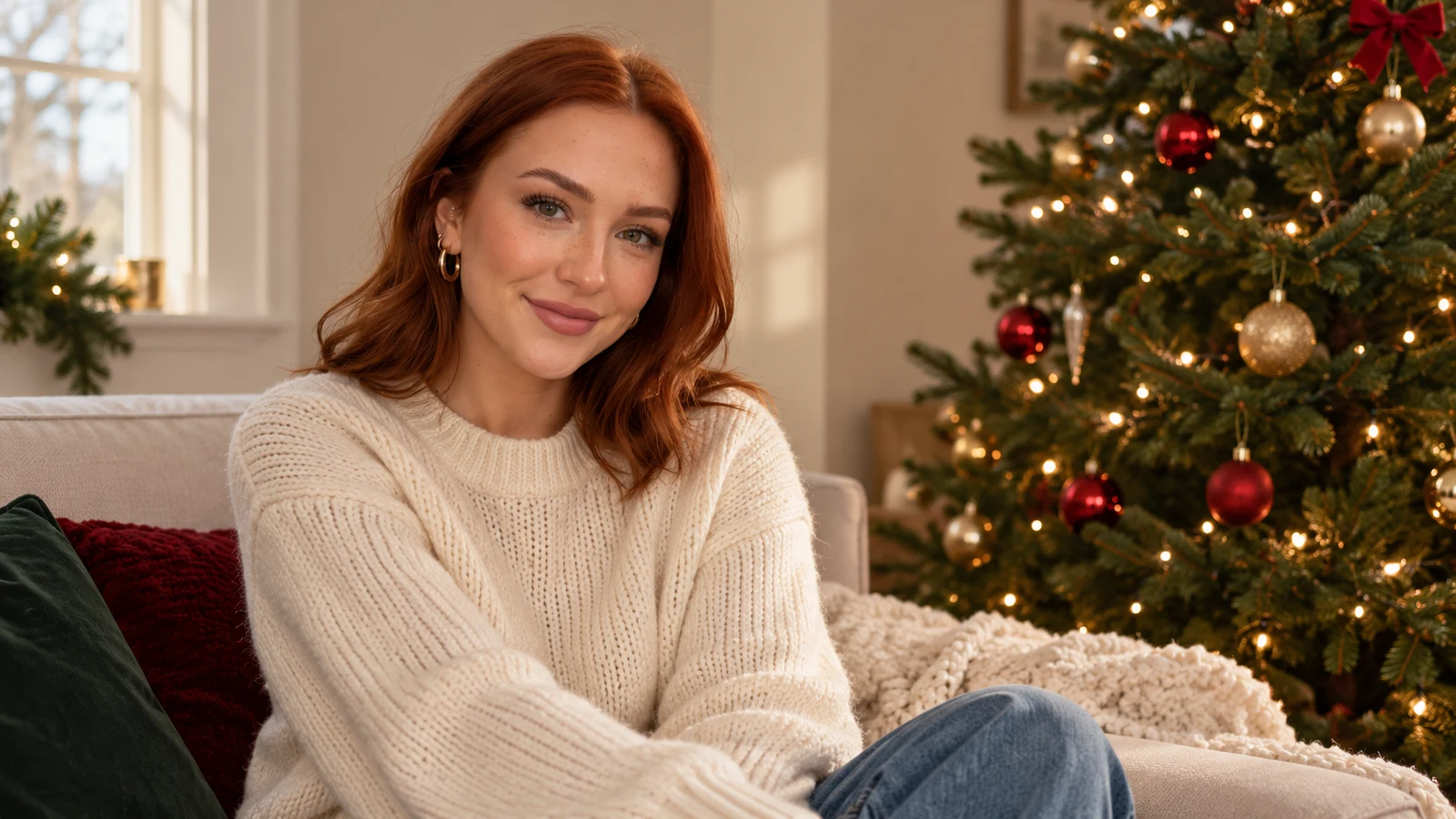
Start with the photo you want to keep
A Christmas photo prompt works best when it describes an edit to a particular picture. Start with a photo where the face is clear and the important details are already visible. A head-and-shoulders selfie suits a portrait, while a wider family photo leaves room for a tree, a sofa or a snowy setting.
The prompts below are written for editing an uploaded image. Replace the setting or clothing details to suit your source. If you want the outfit left alone, say so explicitly. Keep the original photo for each new attempt rather than repeatedly editing an image whose face has already changed.
You do not need a long list of camera terms. Decide what should change, what should stay and where the new details belong. Ask for one finished photograph, then check the face, hands and background before using it on a card or sharing it.
How to use these prompts in ChatGPT
Upload your photo in a ChatGPT conversation and describe the edit you want. You can copy one of the prompts below and adjust it before sending. OpenAI’s image guide explains how to edit an existing image by uploading it and asking for changes.
Begin with one clear request. If the face changes too much, return to your original and shorten the scene description. Name the features you need preserved, such as glasses, freckles, a beard or a pet’s markings. A detailed setting is less useful if the person no longer looks familiar.
You can also use the Christmas photo generator on TooExtra. Its Christmas portrait template starts with a decorated tree and warm lights; add your own details in the instructions. It edits a still photo, and generation uses the same paid access and image allowance as the other app templates.
1. A warm portrait beside the Christmas tree
A simple tree portrait is a useful first edit because the decorations can stay behind the subject. Choose a source with room beside your shoulders. Keep your own clothes if they already suit the picture, or name a single sweater rather than changing every detail.
Edit my uploaded photo into a warm Christmas portrait beside a real fir tree with small white lights and a few red and gold ornaments. Preserve my face, age, hair, expression and skin texture. Keep my outfit and pose. Place decorations behind me, match the existing light and return one natural-looking photograph without text.
If ornaments appear across your face, specify that the tree should remain beside the far shoulder. This keeps the portrait readable even when the image is shown as a small profile picture.
2. A quiet Christmas morning by the window
Soft window light suits a relaxed portrait more than a dramatic party scene. A source taken near a window already gives the editor useful shadows. Ask for a small number of seasonal details so the room still feels like somewhere a person might actually sit.
Use my photo as the reference for a quiet Christmas morning portrait by a window. Keep my recognizable face, hair, age and expression. Add a cream knit sweater, a small decorated tree in the background and soft winter daylight from the same direction as the source. Keep the scene modest and realistic, with no added people or lettering.
If you prefer your original outfit, replace the sweater sentence with “Keep my clothing unchanged.” You can also ask for a mug on a nearby table rather than in your hand if the source does not show a usable hand pose.
3. A Christmas portrait in a snowy garden
Use an outdoor photo for this idea when possible. The existing horizon and daylight make it easier to describe where the snow should fall. A portrait cropped tightly around the face gives little room for a garden, so keep the background request proportionate to your source.
Turn the background of my uploaded outdoor portrait into a small snowy garden at Christmas. Add a light layer of snow to the ground and a fir tree with warm white lights behind me. Preserve my face, expression, hair, clothes, pose and camera angle. Keep the light coherent and the snow away from my eyes. No text or extra people.
Check the edge of your hair and the ground around your feet. If the snow overwhelms the picture, ask for settled snow only, with no falling flakes in front of the subject.
4. A family photo in a festive living room
Start with a photo that already includes everyone you want in the result. Keeping the same arrangement makes it easier to review each face. For two people in separate pictures, use a tool that accepts both references instead of expecting one photo to supply the missing person.
Edit our uploaded family photo into a cozy Christmas living-room portrait. Keep every person’s face, age, expression, clothes and position unchanged. Add a decorated fir tree behind the group and a few wrapped gifts on the floor without covering anyone. Preserve the number of people and the original camera angle. Match the lighting and return one photo without words.
Compare each person with the original before downloading. Pay attention to smaller faces at the edge of a group, where less source detail may be available.
5. A simple Christmas studio portrait
A restrained studio setup can be easier to reuse than a busy room. Pick one background color and one decorative element. A clear portrait with the shoulders visible gives the image a useful shape for a card, a profile or a printed keepsake.
Create a simple Christmas studio portrait from my photo. Keep my face, age, hair, expression and body proportions recognizable. Use a warm neutral background with a small fir branch and subtle white lights at the edge of the frame. Preserve my clothing and use soft, believable light. Leave the face unobstructed. Do not add text, logos or a border.
If you plan to print the image, check the actual downloaded dimensions first. Adding terms such as “8K” to a prompt does not itself set the file size or guarantee a print resolution.
6. A pet portrait beside the tree
A pet’s markings matter as much as a person’s facial features. Choose a sharp photo where the eyes, ears and fur pattern are visible. Decorations beside or behind the animal are often easier to describe than a hat, costume or object covering the head.
Edit my pet’s photo into a Christmas portrait beside a small decorated tree. Preserve the exact fur markings, eye color, ears, expression, body shape and pose. Add warm white lights and a few wrapped gifts in the background, away from the animal’s face and paws. Keep the scene natural, with no costume, extra animals, words or watermark.
Check the paws, whiskers and distinctive patches against the original. For a different style after the Christmas edit, explore the pet portrait templates rather than piling several visual styles into this one request.
7. A Christmas card image with room for your message
Treat the photograph and the lettering as separate jobs. A background with open space is easier to place behind a message later, and you can proofread names, dates and spelling without asking the image editor to redraw the entire picture.
Use my uploaded portrait to create a Christmas card photograph. Preserve my face, age, hair, expression and clothing. Put a softly lit Christmas tree on the right side of the background and leave a calm, uncluttered area on the left for a message I will add later. Keep the composition natural. Return the photo without any lettering, logo or frame.
Choose the empty side to match your source. If your face is already on the left, reverse the layout instruction. Add your greeting after downloading so you can choose the font and exact wording yourself.
8. A festive evening with city lights
An evening street scene works best when the source already has similar light and a usable view of the outfit. Keep the scene ordinary: a shop window, a short strand of lights and a recognizable street can say Christmas without turning the whole background into a glowing set.
Edit my photo into a believable Christmas evening street portrait. Preserve my face, age, hair, expression, outfit and pose. Add warm festive lights above the street and a softly lit shop window behind me. Keep the original camera perspective and give the new background lighting a consistent direction. Avoid crowds, readable signs, snowfall over my face and added text.
If the new lights make the face look orange, ask for neutral skin tones with warm lights confined to the background. Keep the original as the reference for that retry.
Refine one thing at a time
After your first result, choose the most important correction. You might want the glasses restored, fewer decorations, a simpler background or the original sweater. One precise change is easier to assess than a new paragraph that changes the scene, pose, clothing and lighting together.
Use the original photograph again if likeness has drifted. Check eyes, teeth, fingers and small details before sharing. Keep the number of people explicit in group requests, and avoid asking a single close-up to become a wide full-body photograph if preserving the source is your priority.
For a different finish, try an instant-film frame or a two-person portrait as a separate edit. The Christmas setting, the film look and the people in the picture are different choices; deciding them separately makes your instructions clearer.
Explore the instant-film photo tool
Questions and answers
Yes. They are written as edits to an uploaded photo. Add the image first, then adjust the prompt to describe your subject and the details you want retained.
Use a clear original photo and explicitly ask to preserve your face, age, expression and distinctive details. Keep the pose close to the source and review the result; a written request does not guarantee an exact likeness.
You can ask for space for a greeting and add the exact text after downloading. This lets you control names, spelling, font and placement without regenerating the photograph.
No prompt can guarantee a particular file resolution just by including the word 8K. Check the actual downloaded image dimensions and the size required by your printer.
You can adapt the scene instructions in the Christmas photo generator or the custom editor. TooExtra requires paid access to generate an image; preparing a photo and writing your instructions does not use an AI image credit.