AI outfit changer
Try a different outfit on your own photo. Describe the garments, colors and fit you want while keeping your face, pose and setting as the reference.
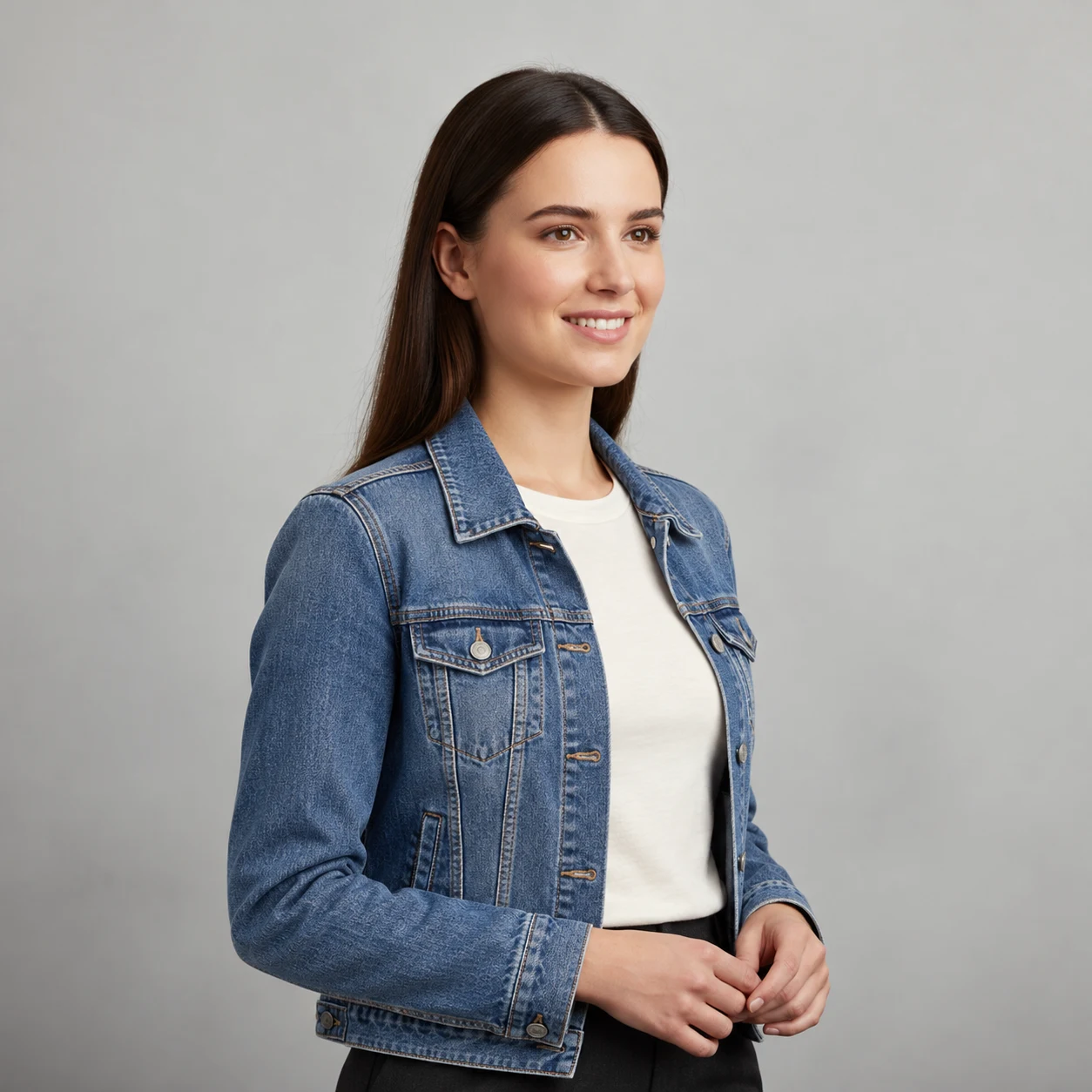
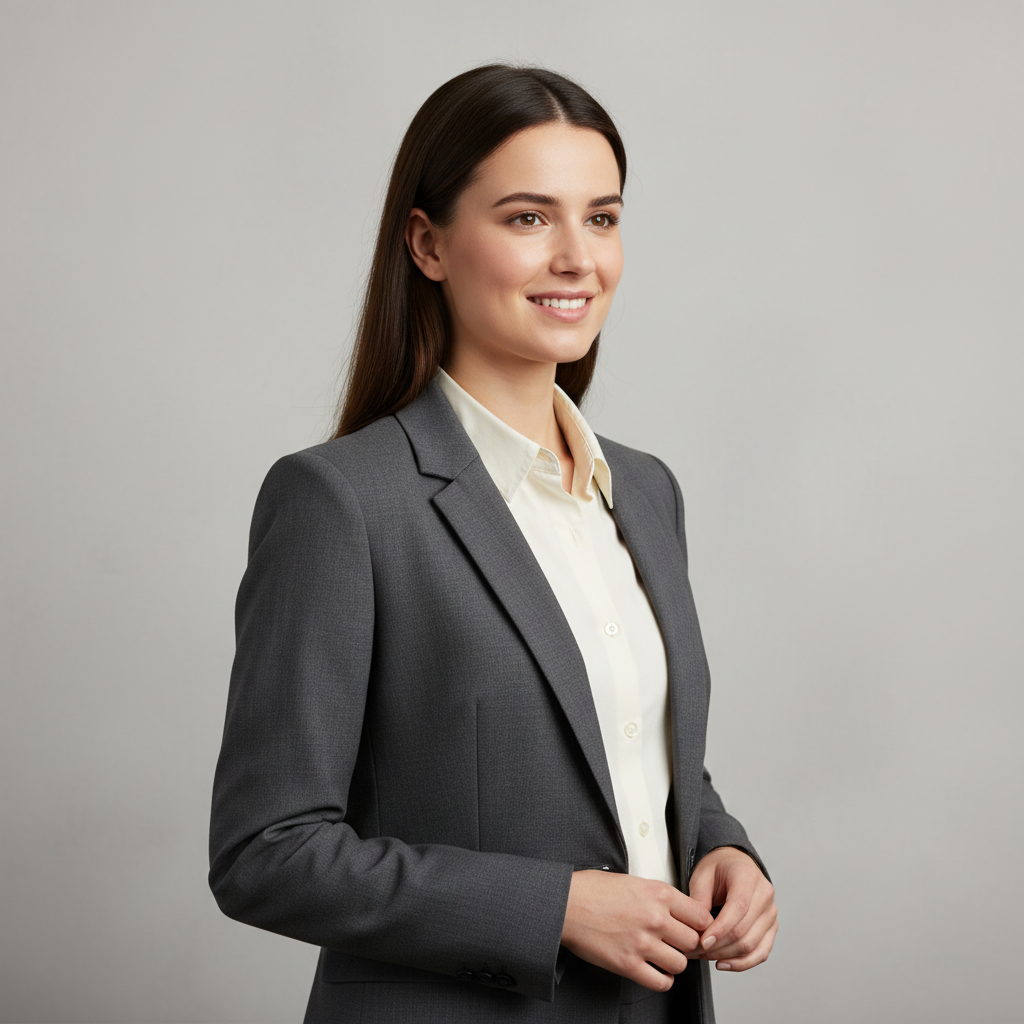
Try it on your photo
How to change an outfit in your photo
Show the clothes you want to replace
Choose a clear half-body or full-body photo. Include the relevant garment edges, hands and shoes when they matter to the outfit. A face-only selfie leaves most of the clothing outside the reference, so it gives you less control over the finished look.
Describe the replacement outfit
The starting preset is a blue denim jacket over a cream shirt with dark trousers. Use extra instructions to request another fully clothed look. Name the pieces, fit and colors, then state which accessories, hairstyle and background details should remain unchanged.
Replace my suit with an open blue denim jacket over a cream crew-neck shirt and dark trousers. Keep my face, hair, hands, body proportions, pose and background unchanged. Match the original lighting.
Compare clothing edges and proportions
Look at the collar, sleeves, waistband and any areas where hands overlap the clothes. Compare the face and body proportions with the original too. Save a version you like, or return to the original photo for another outfit so the previous edit does not become the source.
BeforeAfter
Compare new clothes on a familiar photo
A full outfit change is different from tinting an existing shirt. The garment shape, layers and fabric can change too. This tool uses a written clothing description to guide that edit, while your source photo supplies the person, pose and surrounding scene. Start with a photo that already shows the parts of the outfit you want to replace.
Compare casual and dressed-up ideas
Use the same original picture to try a denim jacket, a tailored blazer or a simple knit. Describe the actual pieces rather than only saying casual or formal. Keeping the face, camera angle and background steady makes it easier to see how the new clothing changes the overall look.
Explain the silhouette and material
A fitted wool jacket and an oversized linen shirt are different requests, even if both are beige. Name the garment, then add its fit, material and general color. Mention layers when they matter, such as an open jacket over a plain T-shirt, instead of leaving their relationship unclear.
Separate an outfit idea from an exact product
The result is a visual interpretation of the clothes you describe. Use it to explore styling rather than to check a store item’s exact cut, sizing or fabric behavior. This page accepts your portrait and text, so it does not compare a second uploaded garment photograph with the person.
Choose a useful photo reference
Use a readable pose
A straightforward standing or seated pose gives the model a useful view of the garments. A bag covering the torso or tightly crossed arms can hide the clothing you want changed. Keep important accessories visible and name them if you want them preserved.
Keep the request internally consistent
Describe one outfit at a time. A short list of compatible layers is clearer than several competing styles, colors and occasions. If only the jacket should change, say so and ask to keep the shirt and trousers rather than requesting a complete new look.
Check texture as well as color
Inspect seams, folds and the way fabric meets the body. A plausible shade alone does not make a clothing edit convincing. If you like the original garment and only want a new color, use the dedicated clothes-color changer instead of replacing the outfit.
Keep the details you like.
Replace my suit with an open blue denim jacket over a cream crew-neck shirt and dark trousers. Keep my face, hair, hands, body proportions, pose and background unchanged. Match the original lighting.
Questions about outfit changes
Need something else? Contact us.
The clothes-color tool asks to retain the existing garment and change its shade. This outfit changer can replace visible garments based on a description, such as a suit becoming a denim jacket and shirt. Use the color tool when you want the same cut and material in another color.
You can describe a fully clothed look in the extra instructions. Useful details include garment type, fit, layers, material and color. The model interprets the request, so check the result rather than treating a description as an exact catalogue item or a guarantee of a particular fit.
This page has one photo input for the person. It does not offer a separate garment-reference image. Describe the outfit in words, using details such as a cream linen blazer over a black top. A product link or store name is not needed for a general styling idea.
The preset asks to keep your recognizable face, age, body proportions, pose and background. Mention an accessory or hairstyle that matters to you. Compare those features with the original, because a generated clothing edit can still change small details around the body or garment edges.
A selfie can work if it shows the clothing area you want changed. A close crop of only the face gives the model little reference for the outfit. For a jacket or dress, choose a wider picture that includes the visible shape and enough surrounding space.
Yes. Open the page in your mobile browser and choose your photo with the native picker. Depending on your device, the picker may offer your library, files or camera. You can download the finished image or use the editor’s share button. No separate app installation is required.
Selecting a photo and writing instructions does not cost anything. Generation requires paid access. Eligible new customers can start with 40 images for $0.99 for three days. Weekly then renews at $6.99 per week. Yearly renews at $59.99 per year with 100 images released each month.
The tool saves your selected photos and instructions in this browser before opening sign-in and the paywall. Continue in the same browser to keep your draft. Checkout returns you to the matching editor. Payment does not automatically generate an image; press Generate Image when you are ready.