AI couple photo generator
Bring two separate portraits into one shared photo. Add a photo of each person, describe the setting and keep both faces as the reference.
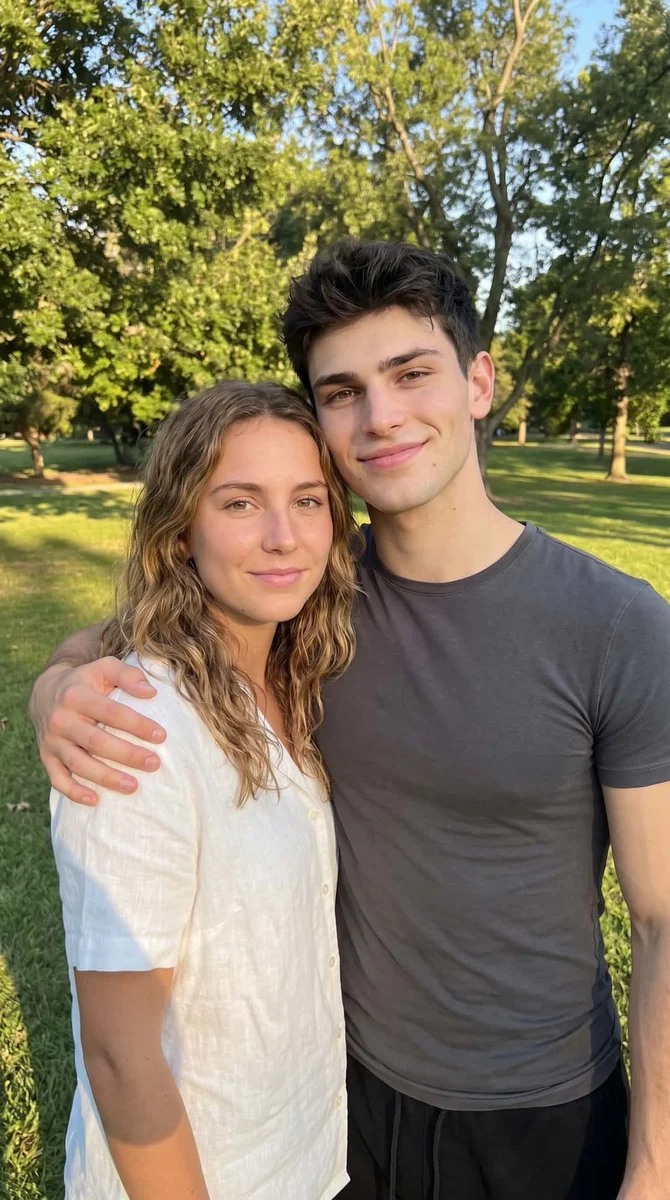
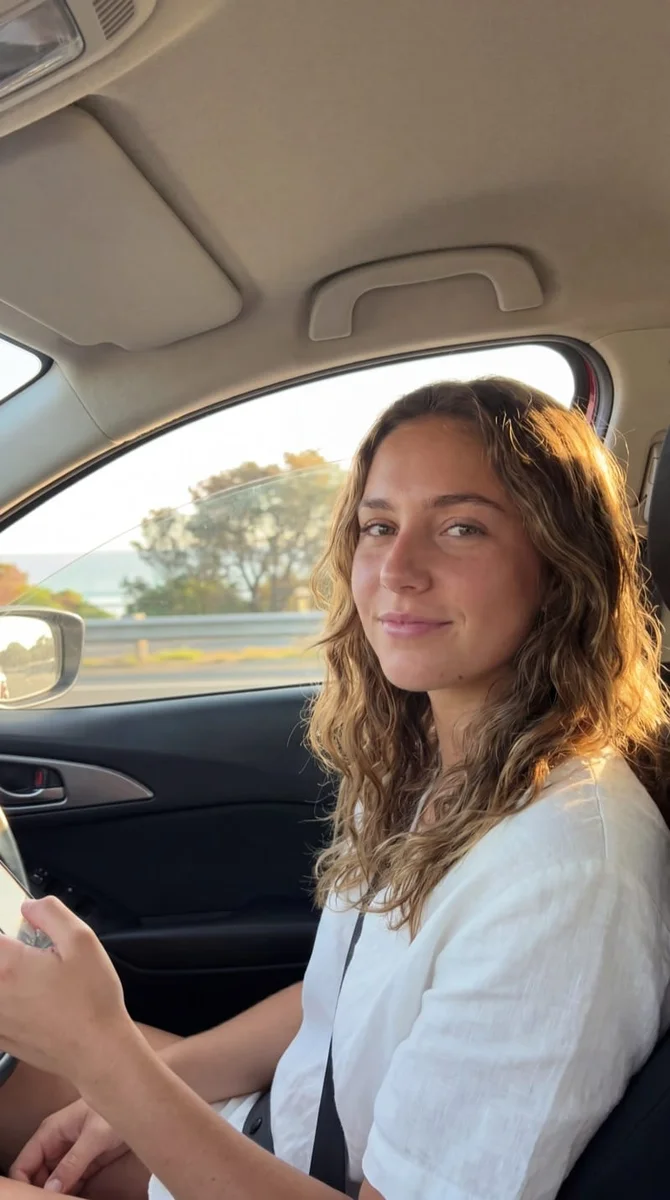
Try it with your photos
How to create a couple photo from two pictures
Add a clear photo of each person
Choose First Photo for one portrait and Second Photo for the other. Keep the face unobstructed in each image, with enough detail to see the eyes, hairline and expression. Both photos are required before you continue to generation. Use people who agree to the edit and the scene.
Describe a scene they can share
Use the extra instructions for a setting, pose and details to retain. A short request such as sitting side by side in a café is a useful starting point. Ask to keep both recognizable faces and avoid combining several incompatible poses or camera angles in the same request.
Place both people together in a relaxed café portrait, seated side by side. Preserve each person’s face, age, hair and skin tone. Match the lighting and keep the pose natural and fully clothed.
Review both faces before saving
Compare the finished image with each original portrait. Check the expressions, hands, scale and the space between the people. Download a version you like or share it from the editor. For another attempt, use the two original photos again so a previous generated face does not become the new reference.
BeforeAfter
Two familiar faces in one new scene
Separate photos can show two people clearly without giving you a picture of them together. This generator uses a reference for each person and asks for a shared scene with consistent lighting and scale. The point is to recognize both people in the result, rather than replacing one portrait with an invented companion.
Create a shared portrait from separate pictures
Choose one recent portrait of each person, preferably with similar camera angles and clear faces. You can describe an ordinary setting such as a café table, a park bench or a simple studio. Keeping the first scene modest makes it easier to compare the two likenesses before adding a more elaborate background.
Make an image for a personal message
A shared portrait can become part of an anniversary message or a playful note when you do not have a recent photo together. Keep the people fully visible and describe a relaxed pose. Add the exact wording of your message after downloading, so names and dates stay easy to edit.
Keep two identities distinct
Name the people by their source positions in your request, such as the person in the first photo and the person in the second. Mention distinctive hair, glasses or clothing you want retained. Review both faces separately, because a convincing setting alone does not tell you whether each reference was followed well.
Choose a useful photo reference
Choose compatible angles
Two gently front-facing portraits are easier to describe together than a close profile paired with a wide overhead shot. Similar light also gives the model a clearer starting point. You can still try different sources, but inspect the face that needed the larger change in angle carefully.
Leave room around the faces
Avoid source images with a cropped chin, hidden eyes or a hand covering the mouth. A wider head-and-shoulders portrait can provide more useful detail than a tightly cropped face. Keep each person large enough in the frame to remain clear after the images are brought together.
Start with a simple pose
Side-by-side portraits give you a straightforward way to judge identity and scale. Complex hand gestures or overlapping faces leave more room for anatomical mistakes. Add one pose detail at a time and check the finished picture before choosing a more involved scene.
Keep the details you like.
Place both people together in a relaxed café portrait, seated side by side. Preserve each person’s face, age, hair and skin tone. Match the lighting and keep the pose natural and fully clothed.
Questions about couple photos
Need something else? Contact us.
This tool requires two separate source photos, one for each person. The public form saves both before sign-in, then opens the app’s two-photo Couple Photo editor. If you already have a picture of both people together and only want a seasonal background, use the Christmas photo tool with that existing group photo.
This page is built for two real source portraits. It does not invent the second person from a single upload. Add both photos before generating. The app has other playful companion effects, but those are different from combining two recognizable people into one scene.
Describe the scene and any clothing changes in the extra instructions. There is no separate backdrop catalogue or exact garment-reference upload on this page. The two image inputs are reserved for the two people, and the written request guides the rest of the scene.
The preset asks to preserve each distinct identity, age and skin tone. Generated images can still reinterpret expressions or small facial details. Use clear references and compare each person individually rather than judging only whether the combined scene looks believable.
It is a generated composition based on two source portraits, not a record of a meeting that took place. You receive one still image to download or share. The tool does not create a live video, animate the people or produce a series of photographs automatically.
Yes. Open the page in your mobile browser and choose your photo with the native picker. Depending on your device, the picker may offer your library, files or camera. You can download the finished image or use the editor’s share button. No separate app installation is required.
Selecting a photo and writing instructions does not cost anything. Generation requires paid access. Eligible new customers can start with 40 images for $0.99 for three days. Weekly then renews at $6.99 per week. Yearly renews at $59.99 per year with 100 images released each month.
The tool saves your selected photos and instructions in this browser before opening sign-in and the paywall. Continue in the same browser to keep your draft. Checkout returns you to the matching editor. Payment does not automatically generate an image; press Generate Image when you are ready.