Polaroid Photo Sizes and Frames
Check Polaroid photo sizes with and without the border. Compare classic and Go formats, plan a digital frame and avoid cropping faces when you print.
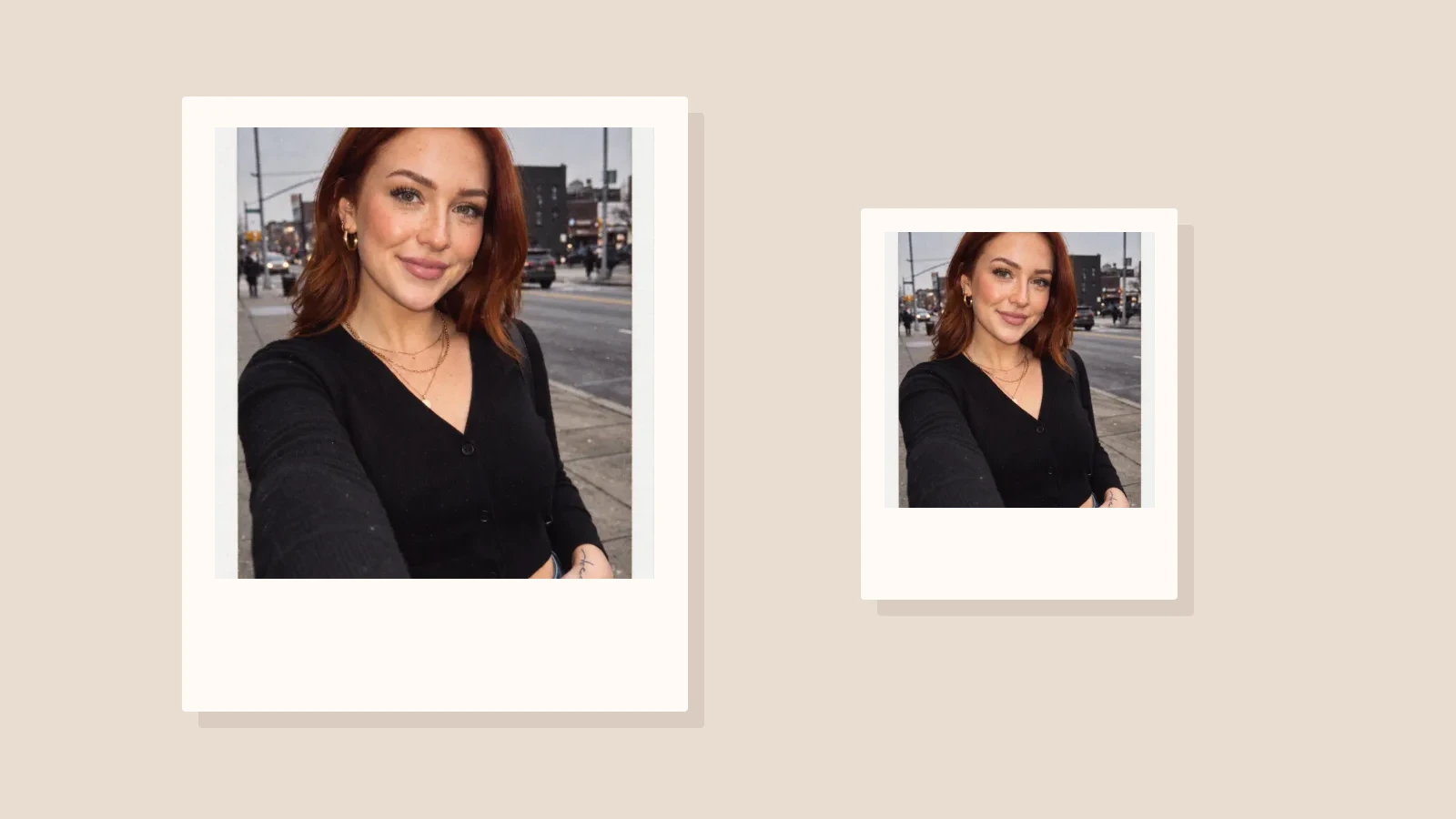
Measure the full print and the picture separately
Polaroid photo size can mean the whole physical print or only the picture inside the border. Those are different measurements. For a frame, sleeve or scrapbook pocket, measure the outer print. For cropping a digital photo, pay attention to the image opening so the face does not end up under the border.
Classic SX-70, 600 and i-Type prints share the same outer dimensions. Go is smaller. Polaroid publishes both the total size and the image-area size in its support guide. The table below follows the orientation and figures in that guide, with height first and width second. Keep that order in mind when entering dimensions in an editor.
| Format | Outer size, inches | Image area, inches |
|---|---|---|
| SX-70 / 600 / i-Type | 4.233 × 3.483 | 3.108 × 3.024 |
| Polaroid Go | 2.623 × 2.122 | 1.851 × 1.811 |
Use the right units for your project
When ordering a frame or setting up a printed layout, choose one unit system and keep it throughout the document. Do not combine an outer measurement in inches with an image opening in centimeters. The border is part of the total print, so adding it again would make the finished piece larger than intended.
Polaroid’s guide also provides centimeter and millimeter measurements. Use those original figures if your printer or supplier requests metric units. For a craft layout, confirm the actual print or template with a ruler before cutting several pieces. A rounded size in a search result may be convenient but is not a production specification.
A digital file has no single Polaroid pixel size
A physical measurement does not determine the pixel dimensions until you choose a print resolution. The calculation is inches multiplied by pixels per inch. For example, a width of 3 inches at 300 pixels per inch needs 900 pixels. That is an illustration of the calculation, not the width of a classic Polaroid print.
Apply that calculation separately to the actual width and height you need, then round the final pixel values. Ask your print service which resolution and file settings it accepts. Enlarging a small image to those dimensions does not create missing facial detail, so start with the clearest original file available.
Build the frame around the image
A digital instant-film frame usually has a near-square picture opening, white margins and a deeper lower border. Set the canvas size first, then place the image opening inside it. Use your intended outer ratio if the piece must fit a particular pocket or frame. Keep any caption inside the lower margin.
Before finalizing the crop, check the top of the head, hands and objects near the edge. A portrait that looks comfortable on a phone can lose important details when fitted into a smaller opening. Try moving the image within the opening before cropping tighter, and leave enough space around faces for the border.
Check the print preview before making copies
Print one sample before making a full set for a wall or event. Check whether the printer is scaling the document to fit the paper. If you require a specific physical size, review the scale setting and measure the sample. White space added by the printer is different from the border designed into your image.
For several images on a sheet, allow space between the outer frames for cutting. Keep crop marks outside the finished design. Check the source photos together so one is not much darker or softer than the others. Save an editable version of the layout in case you later change the caption or image.
Choose between a frame and a generated scene
Adding a border to an existing photo is a layout task. Generating an instant-film-style portrait changes the appearance of the picture as well. TooExtra’s AI Polaroid generator uses the Instant Film template to create that photographic look with a white border. It is not a precision page-layout or print-sizing tool.
Use the generator when you want the portrait treatment, then check the downloaded file in your own layout editor if exact print dimensions matter. If you only want your untouched photograph inside a measured frame, build the border in an image editor instead. A photo strip is another layout with a different shape and purpose.
Keep a clean master for later changes
Save the original photograph, the edited image and the final print layout as separate files. This lets you replace a border or adjust a caption without repeatedly resizing the same small export. Give your print file a name that includes the intended physical size so it is easier to choose the right version later.
Before sharing online, make a separate export suited to the platform rather than assuming the print layout will fill a phone screen. Preserve the full frame when it is part of the design. If you need a taller post, place the framed image on a larger background instead of stretching the photo to change its shape.