Short hair filter
See yourself with a textured pixie cut. Start with your own photo and compare a shorter shape around your forehead, ears and neckline.
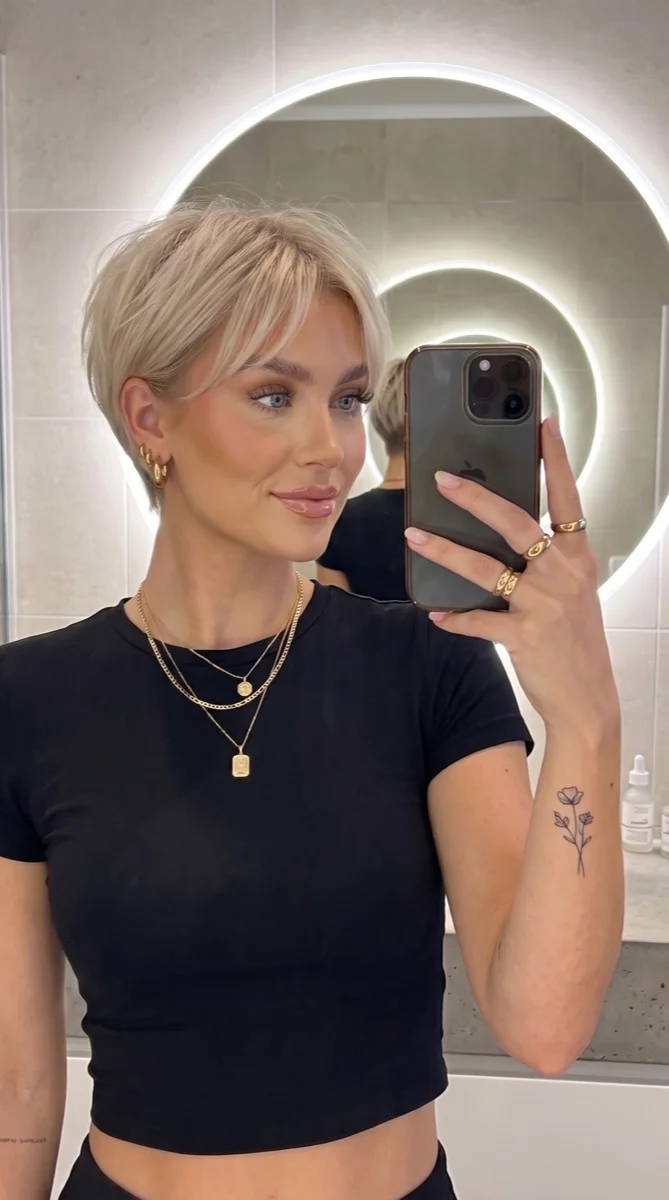
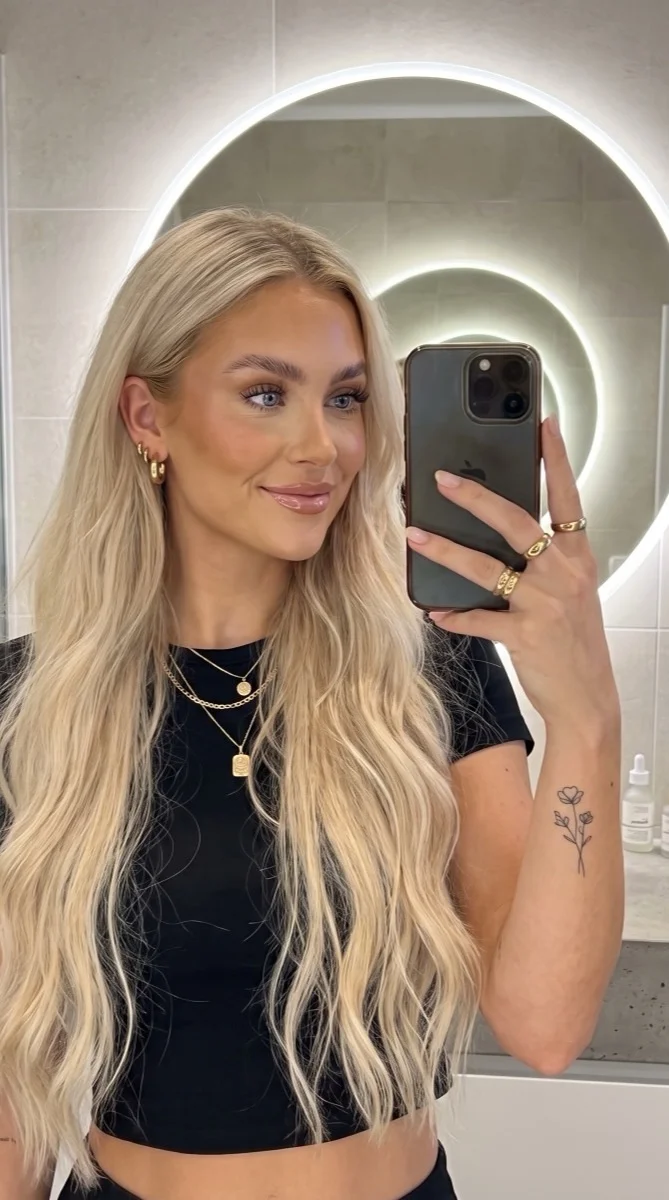
Try it on your photo
How to try short hair on your photo
Choose a clear portrait
Use a front-facing or slight-angle photo with your whole head visible. Leave room around the crown and ears, and choose a picture where the hairline is easy to see. Tuck loose strands away from your eyes so the edit has a clear reference for your face.
Describe the short shape
This tool starts with the app’s textured Pixie Cut preset. Add instructions for the fringe, side length or volume you want. Keep the color unchanged for your first comparison. If you want a jaw-length bob instead, use the French Bob template in the hairstyle collection.
Give me a short textured pixie cut with softly tapered sides and a natural fringe. Keep my hair color, face, earrings, clothes and background unchanged.
Compare before making the cut
Review the result beside the original and check the hairline, ears and face. Download the version you like and show it with a real haircut reference at your appointment. A second angle can help you compare the outline without asking the first image to show every side.
BeforeAfterSave and share
Download your image or send it to the group chat.




A shorter cut changes more than the length
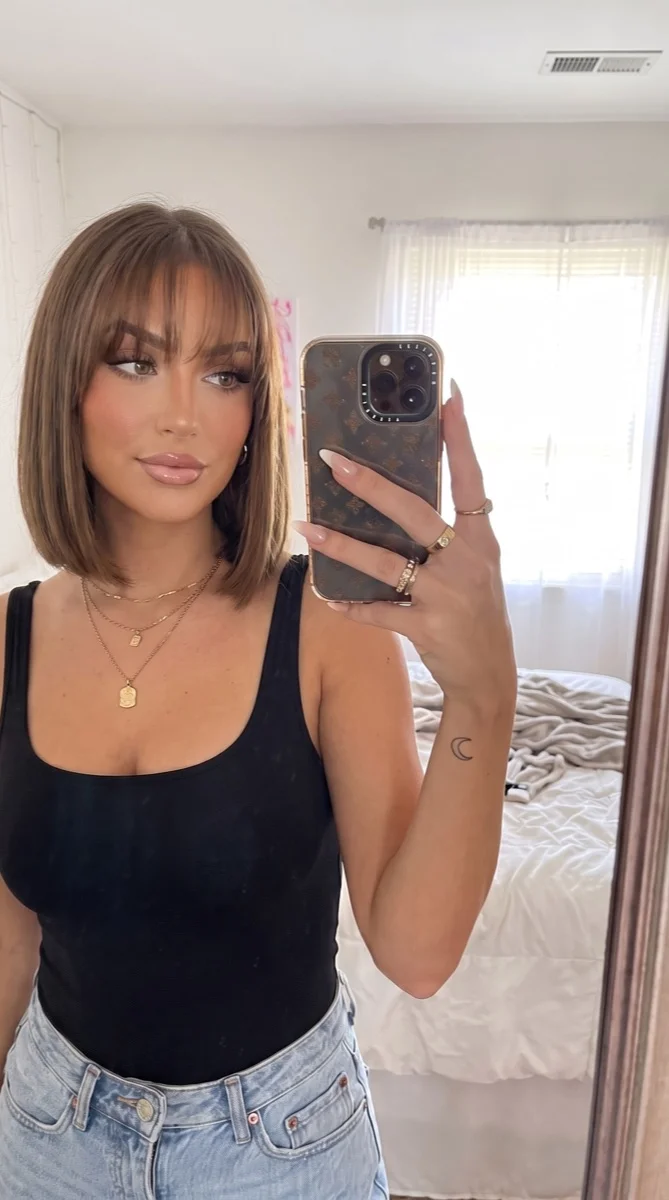
Removing length changes the space around your face. A pixie exposes more of the ears and neck, while a bob keeps a stronger line beside the jaw. Use your own portrait to decide which outline you want to explore, then discuss the practical cut with your stylist.
Compare a pixie with your current hair
Start by keeping your natural color and the same photo angle. This makes the change in silhouette easier to judge. Look at the height above your forehead and the space beside your cheeks, rather than comparing a polished generated portrait with an entirely different selfie.
Explore the bob alternative
The French Bob template keeps a jaw-length outline and adds a straight fringe. Open it from the hairstyle collection if a pixie feels too cropped. Save each result separately and compare both with your original, so you can describe which length and fringe you prefer.
Bring a clearer reference to your appointment
A preview gives you a way to point to the shape you mean. Tell your stylist which parts you like, such as softer sides or a longer fringe. Bring the source photo too, and ask how your existing texture and daily styling routine would affect the cut.
Make your haircut comparison useful
Show the whole hairline
Avoid hats, heavy shadows and a crop that removes the crown. Hair covering the cheek or neck also hides the area a short style would expose. A clear source gives you a better comparison of the haircut and the features it frames.
Change one detail at a time
Keep the first request focused on length. Then try a longer fringe or more texture using the original photo again. Changing color, makeup, lighting and haircut together makes it harder to tell whether the short shape itself is the part you like.
Check the details beyond the hairstyle
Look at your eyes, earrings, glasses and the background near the hair. These should still be familiar. If a version changes an important detail, return to your original and name what must stay rather than building another edit on a face that has already changed.
Keep the details you like.
Give me a short textured pixie cut with softly tapered sides and a natural fringe. Keep my hair color, face, earrings, clothes and background unchanged.
Questions about short hair previews
Need something else? Contact us.
It opens the textured Pixie Cut preset, with tapered sides and a natural fringe. The hairstyle collection also has French Bob and Buzz Cut templates. Each template has its own starting shape; this page does not display a separate style selector.
Yes. The preset asks to retain your existing hair color. Add that instruction again if color is especially important, and compare the result with your source. To explore color as a separate change, use the hair color tool.
You can upload a curly-haired portrait and ask to retain the texture in the shorter shape. Check the result carefully around the fringe and sides. A photo edit cannot tell you how your curls will fall after an actual haircut.
No. You upload a still photo and generate a new still image. On a phone, Add Your Photo opens the native picker, which may offer your camera or photo library. You can review the image before continuing.
You can select a photo and prepare instructions before signing in. Generating the preview requires paid access. Your photo and instructions carry into the matching editor, and payment does not generate an image automatically.